Kling 3.0 Motion ControlCopy Any Motion, Free OnlineKling 3.0 Motion Control — Copy Any Motion, Free Online
Kling 3.0 Motion Control copies the movement from a reference video onto your character. Upload one photo and a driving clip, and Imya runs Kling 3.0 Motion Control in your browser — dance, fight scenes, gestures and camera moves transferred in minutes. No app, no API key.
Kling 3.0 Motion Control video generator
Best for full-body motion — dance, sports, action. Up to 30s.
Kling 3.0 Motion Control renders take ~2–5 minutes. Keep this tab open — your video appears here when it is ready.
Preview
 ▶ Demo
This is a pre-made demo. Upload your own photo and reference video, then hit Generate.
Powered by Kling 3.0 Motion Control on Imya
What Is Kling 3.0 Motion Control?
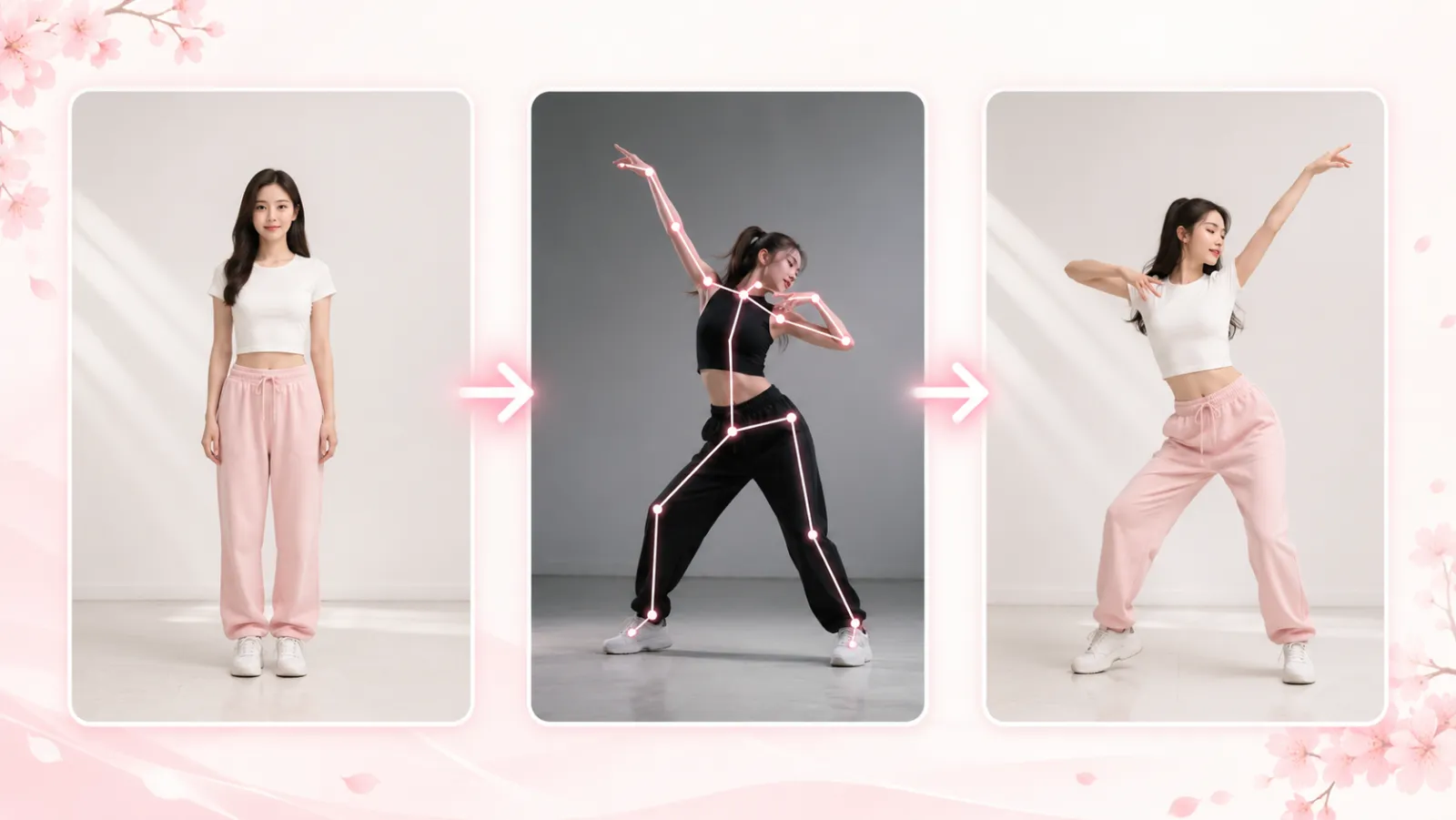
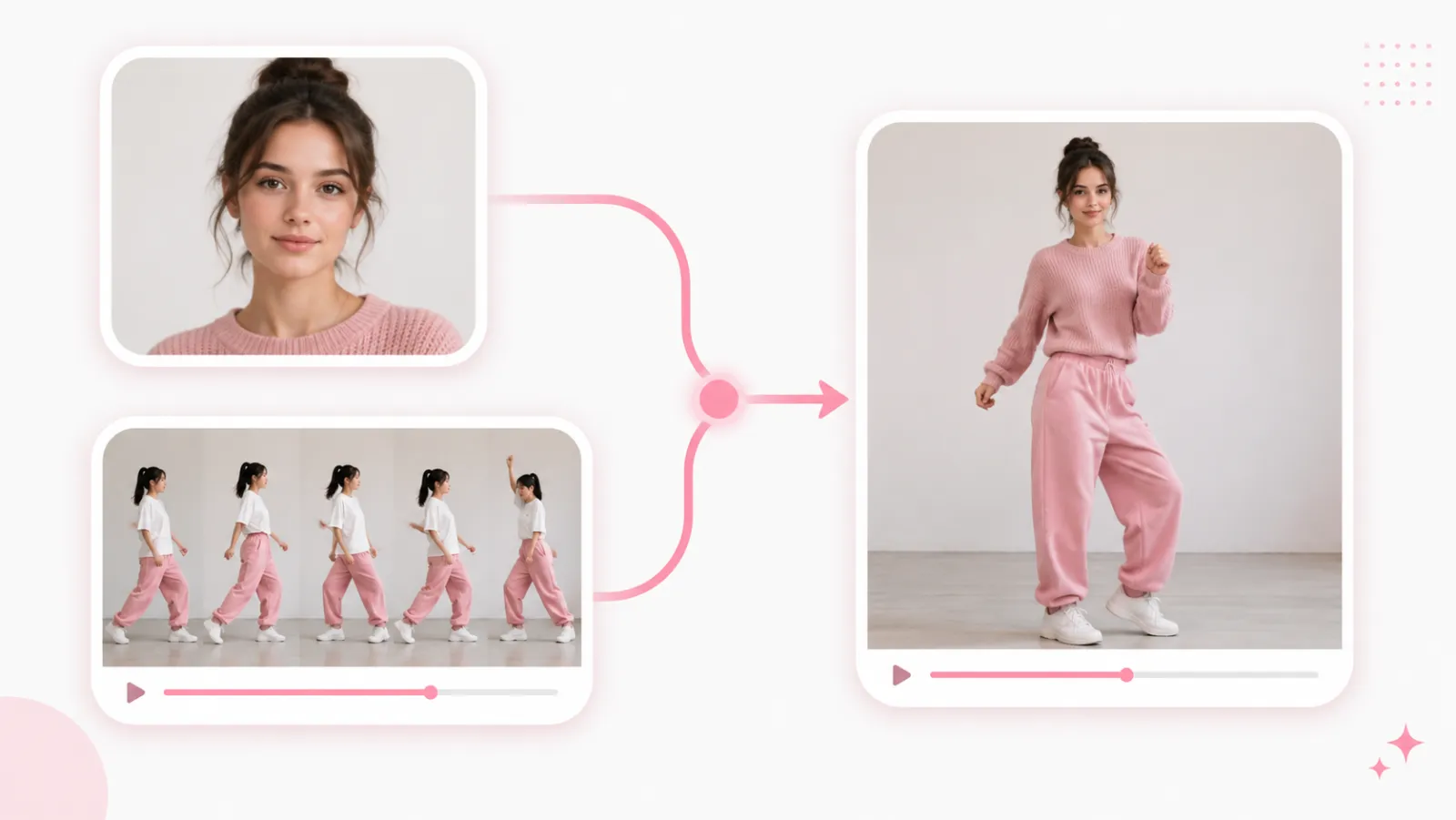
Kling 3.0 Motion Control is the feature in Kuaishou’s Kling 3.0 model that copies movement from one video onto a character of your choice. You supply two things — a character image and a reference (driving) video — and it reproduces the reference motion with your character, keeping their look while borrowing the action.
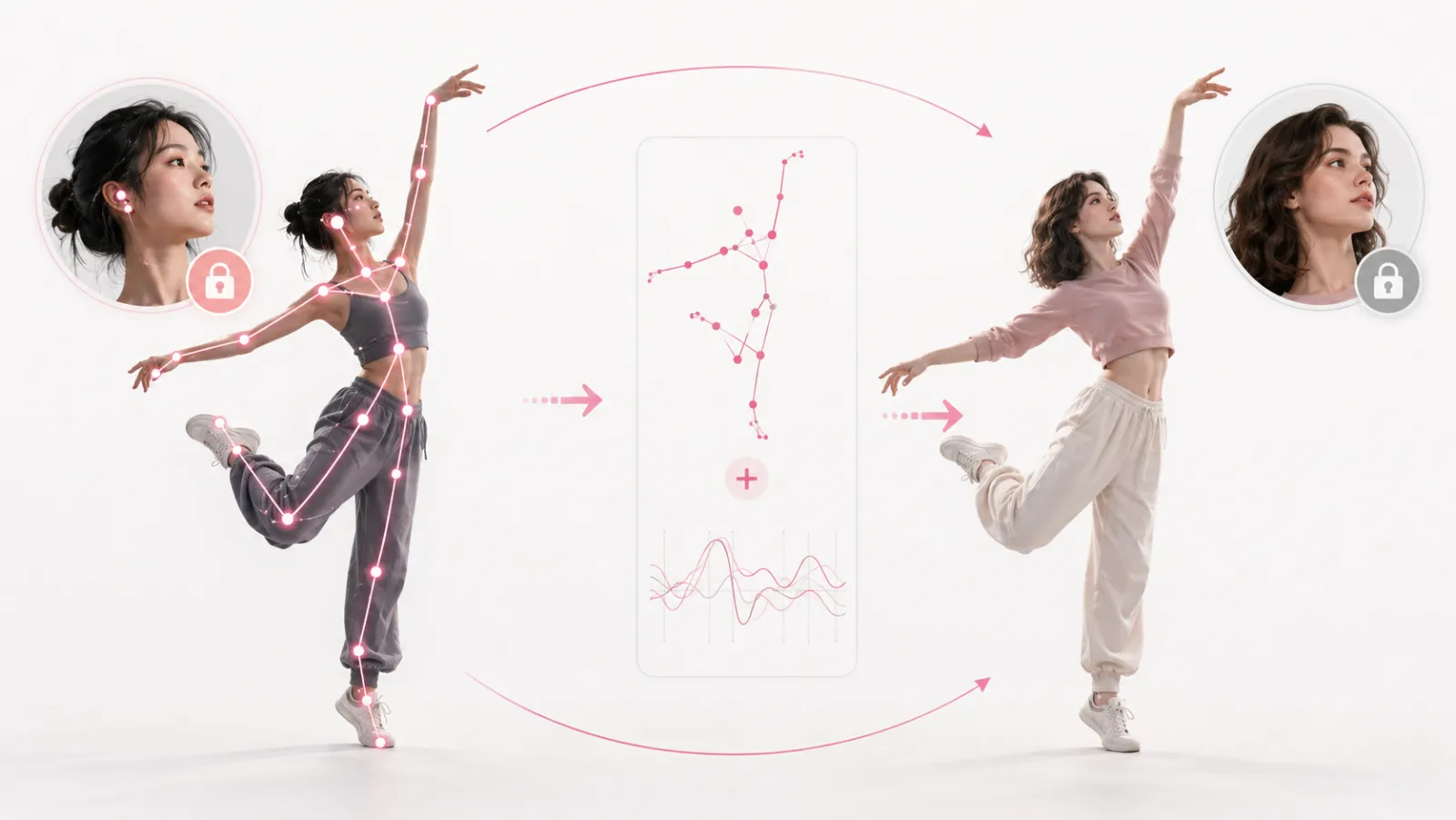
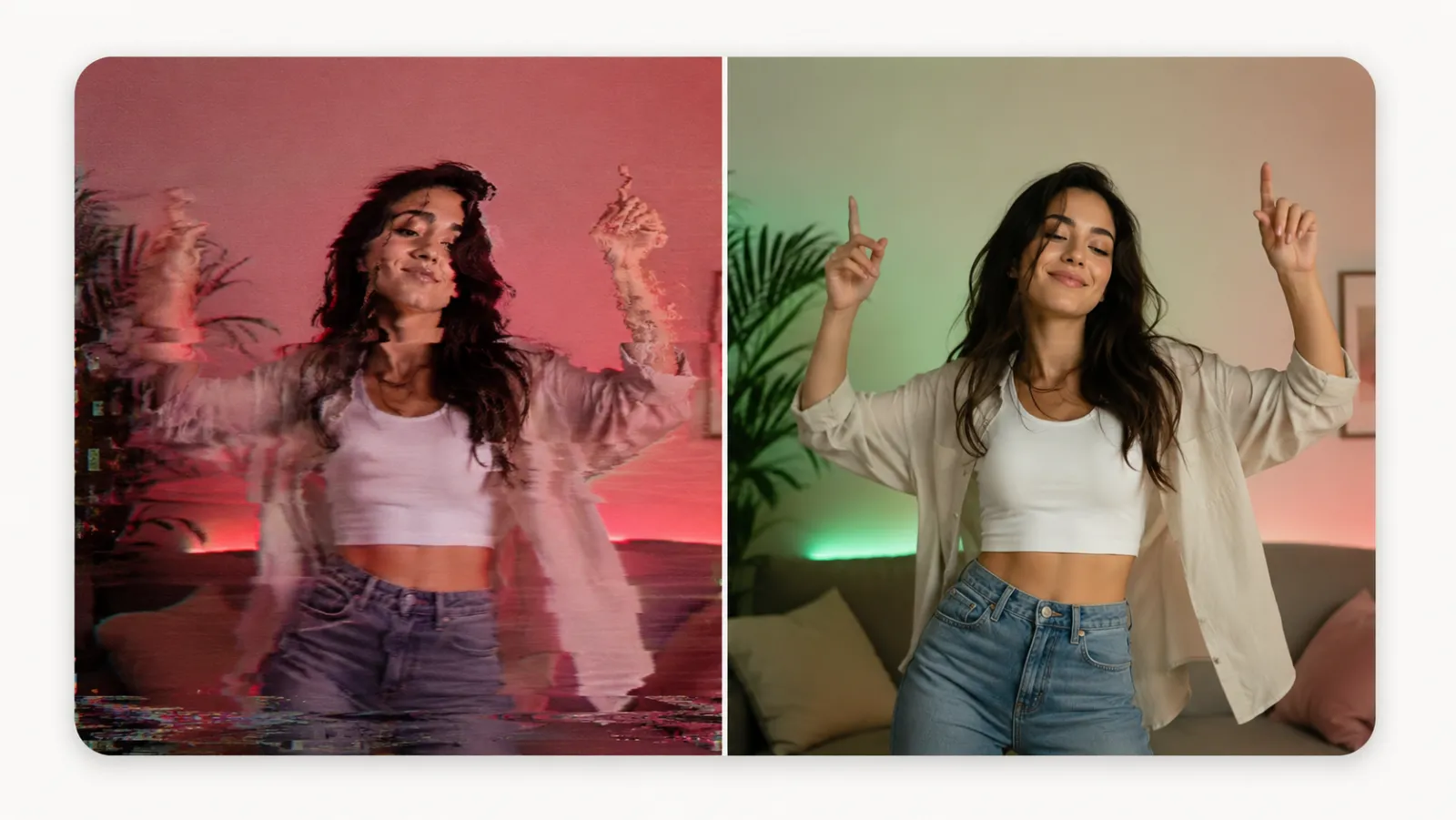
Under the hood, Kling 3.0 reads the body pose, gesture timing, and camera path from the reference clip, then maps that motion onto your character. A new Element Binding step ties facial identity to the motion data, so faces and hands stay stable through complex movement instead of melting — the biggest jump over Kling 2.6 motion control.
On this page you can use Kling 3.0 Motion Control free online with no setup. Upload a photo, drop in the motion you want to copy, and Imya runs Kling 3.0 in your browser — no app to install and no API key to manage. Explore the demo and examples before you ever spend a credit.
How Kling 3.0 Motion Control Works
Kling 3.0 Motion Control works in one pass. First it tracks the reference video — body pose, gesture timing, posture and camera trajectory across every frame. Then it re-renders that exact motion with your uploaded character, so the action transfers while the identity stays yours.
The new piece in 3.0 is Element Binding: it connects facial identity to the motion data, which is why Kling 3.0 holds faces and hands steady through fast, complex movement where earlier motion-transfer tools warp them. Pick a character orientation — Video for full-body motion, Image for portrait and upper-body gestures — to tell the model how to frame the result.
Why Use Kling 3.0 Motion Control on Imya?
A no-friction way to run the feature — built for results, not setup.
Copy any action, perfectly
Hand Kling 3.0 any reference clip — a dance, a fight scene, a runway walk — and it transfers the movement to your character beat for beat, no keyframing or rigging.
Stable faces & hands
Element Binding locks facial identity to the motion, so your character’s face and hands stay clean through complex movement — the standout upgrade over Kling 2.6 motion control.
Free to start · no install
Run Kling 3.0 right in your browser — no GPU, no app, no API key. New accounts get starter credits, and those credits apply toward the first motion-transfer render.
What Can You Make with Kling 3.0 Motion Control?
One photo plus a reference clip — here are three favorites.
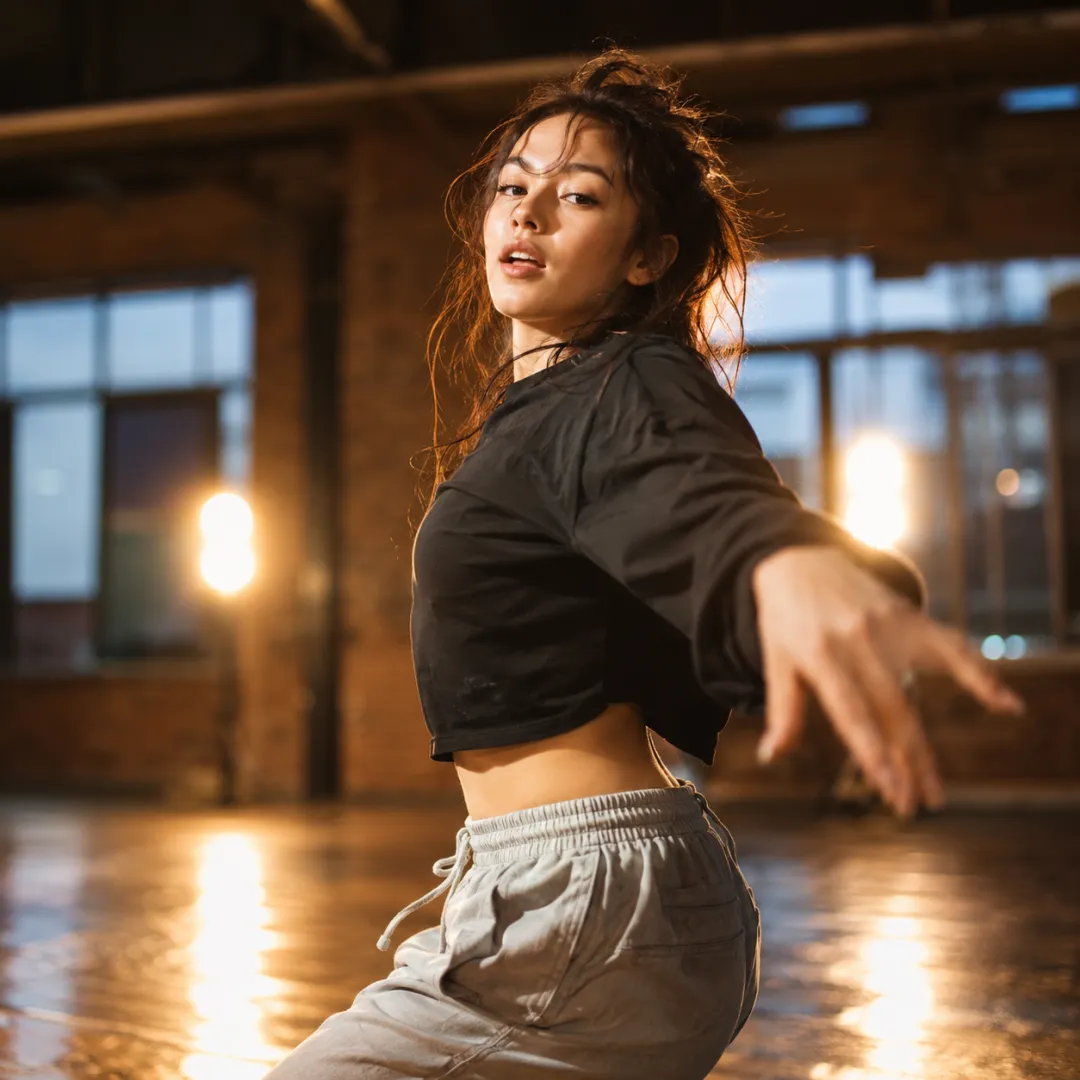
Dance & performance videos
Copy a trending dance or a full choreography onto your character with Kling 3.0 — perfect for TikTok, Reels and Shorts without filming a single step.
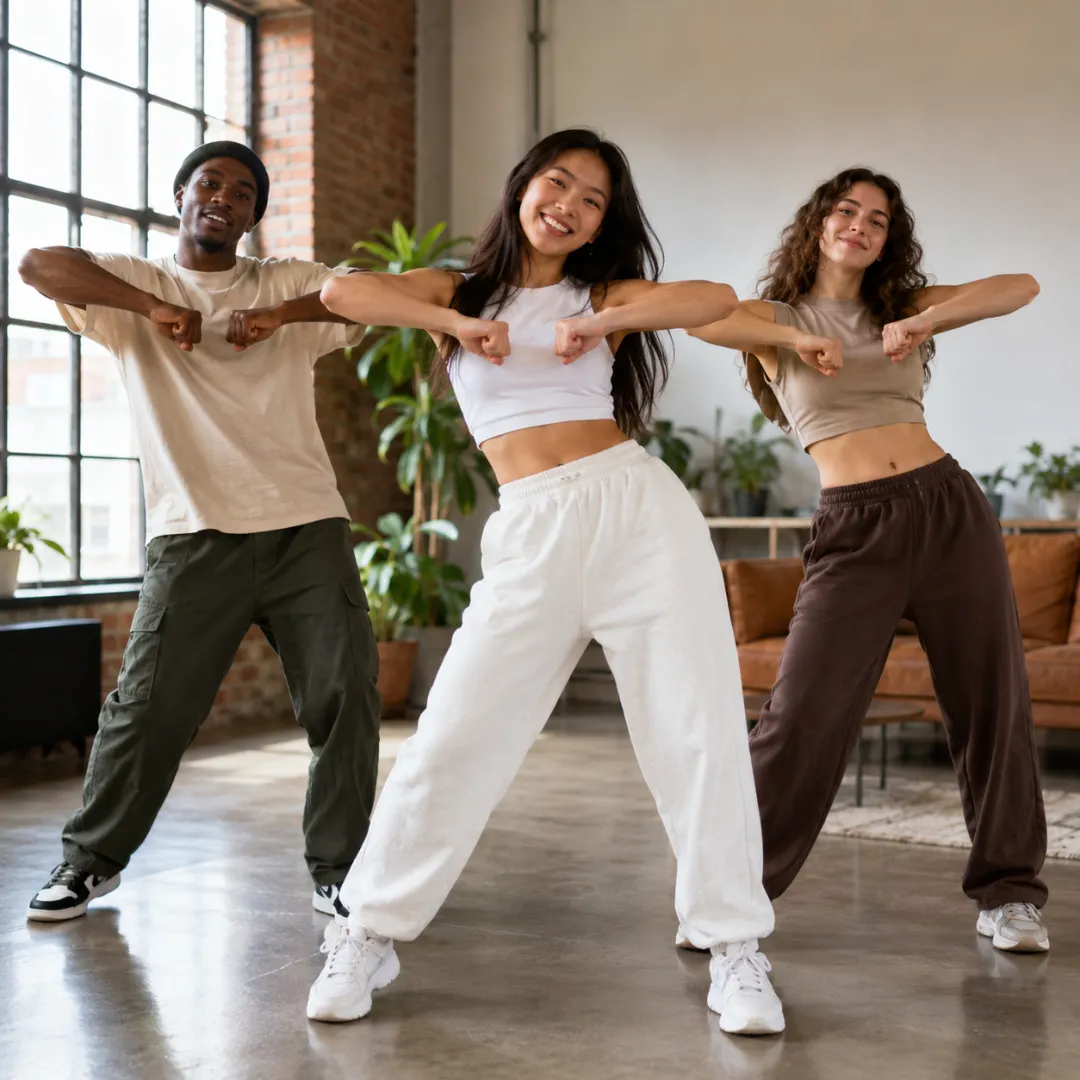
Multiple characters
Transfer the same motion onto different characters, or drive a group scene — Kling 3.0 keeps each face consistent so multi-character clips hold together.
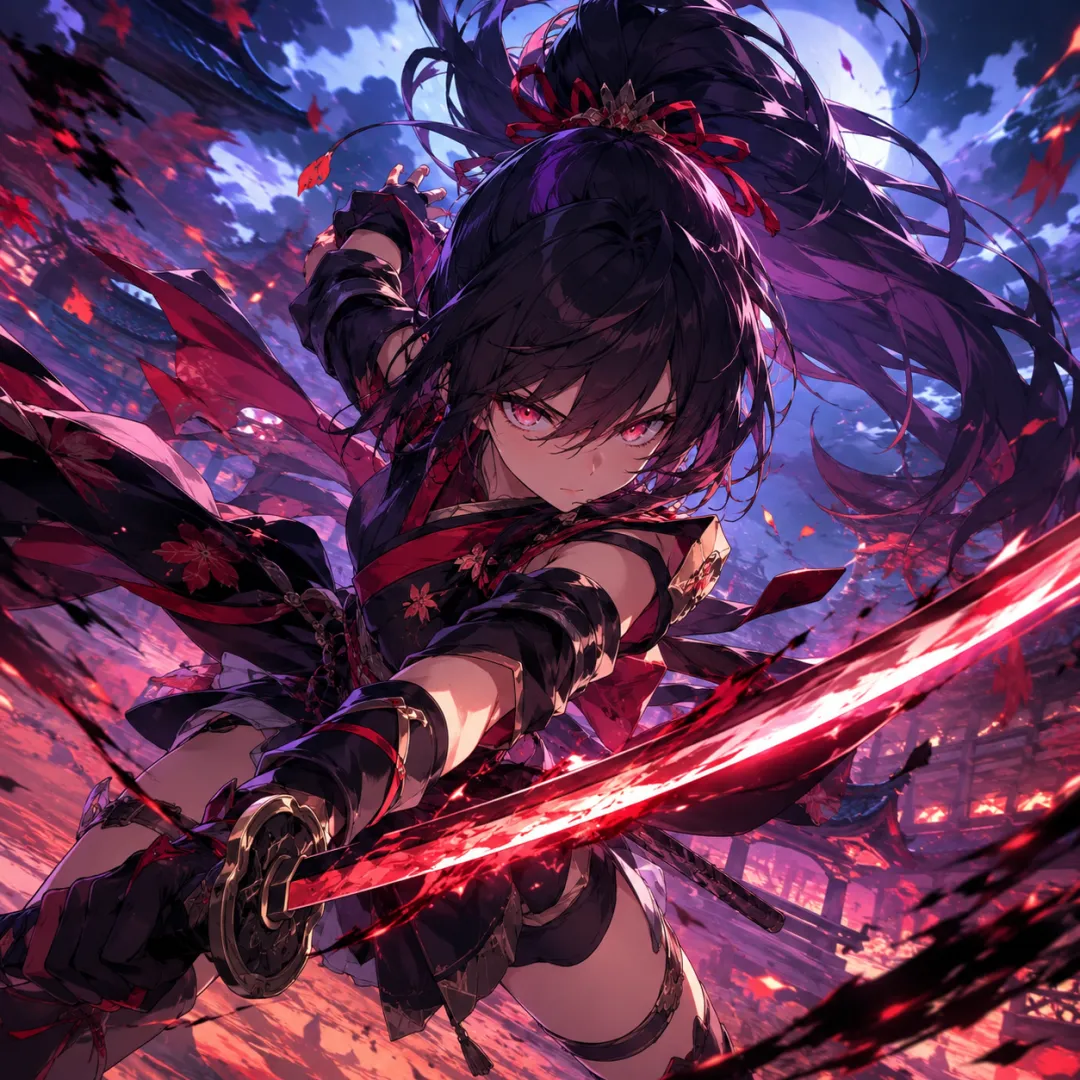
Anime & game action
Bring a still character to life with cinematic action — Kling 3.0 maps fight choreography and dynamic camera moves onto anime and game characters.
Kling 3.0 Motion Control Examples & Showcase
A look at what Kling 3.0 Motion Control can copy — dance, sports, performance and more. Bring your own character and reference clip in the generator above.
 Trend reel · dance
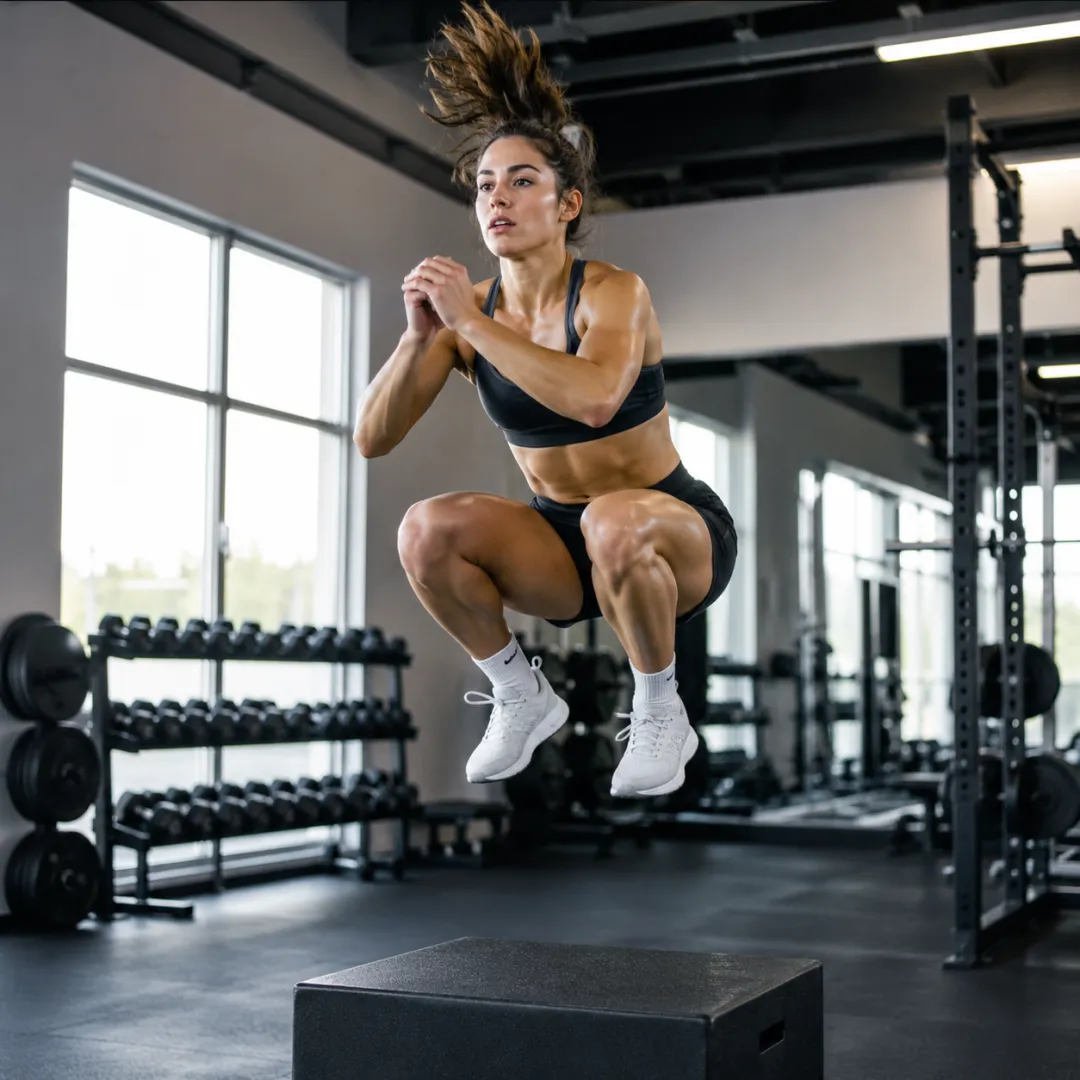 Fitness · workout
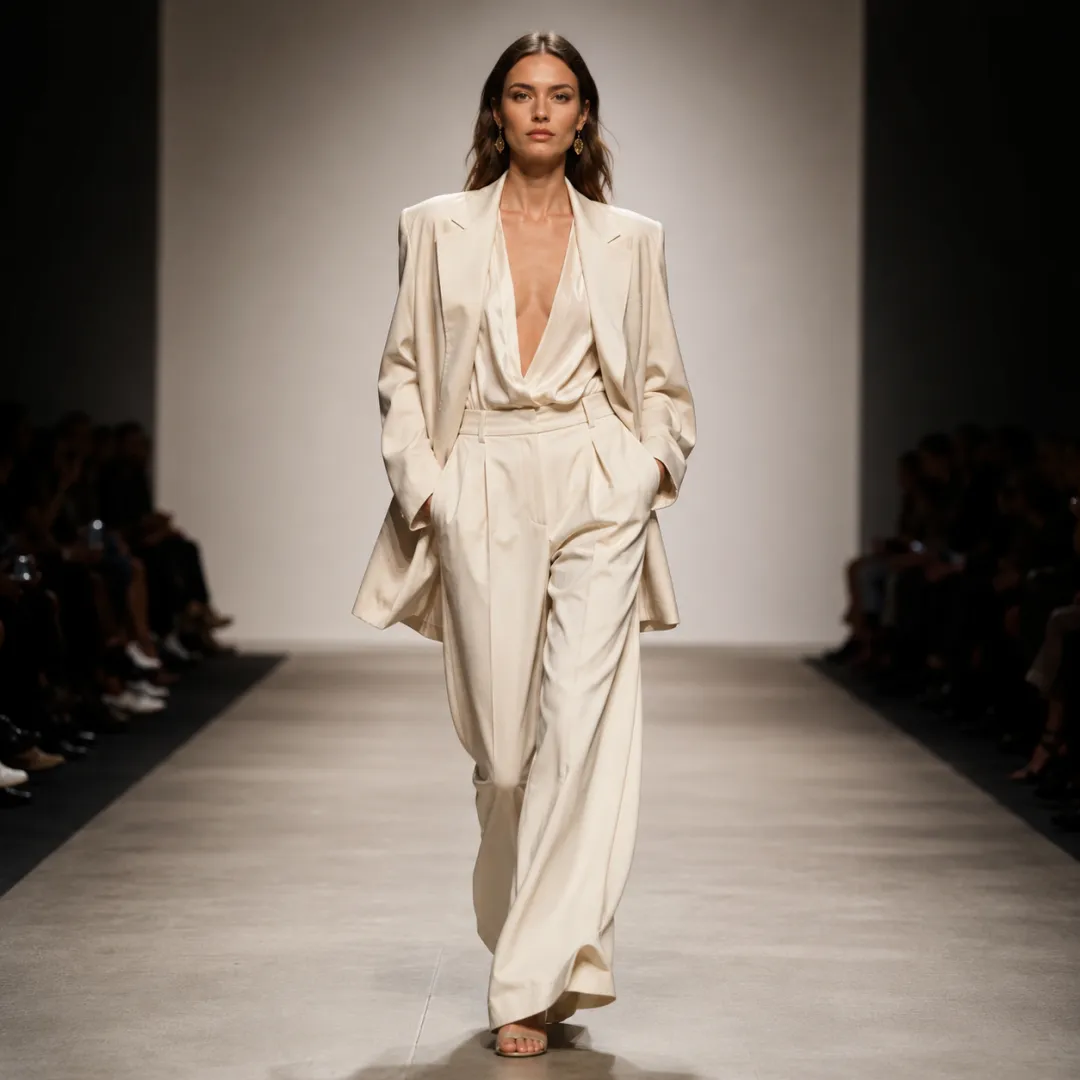 Fashion · runway walk
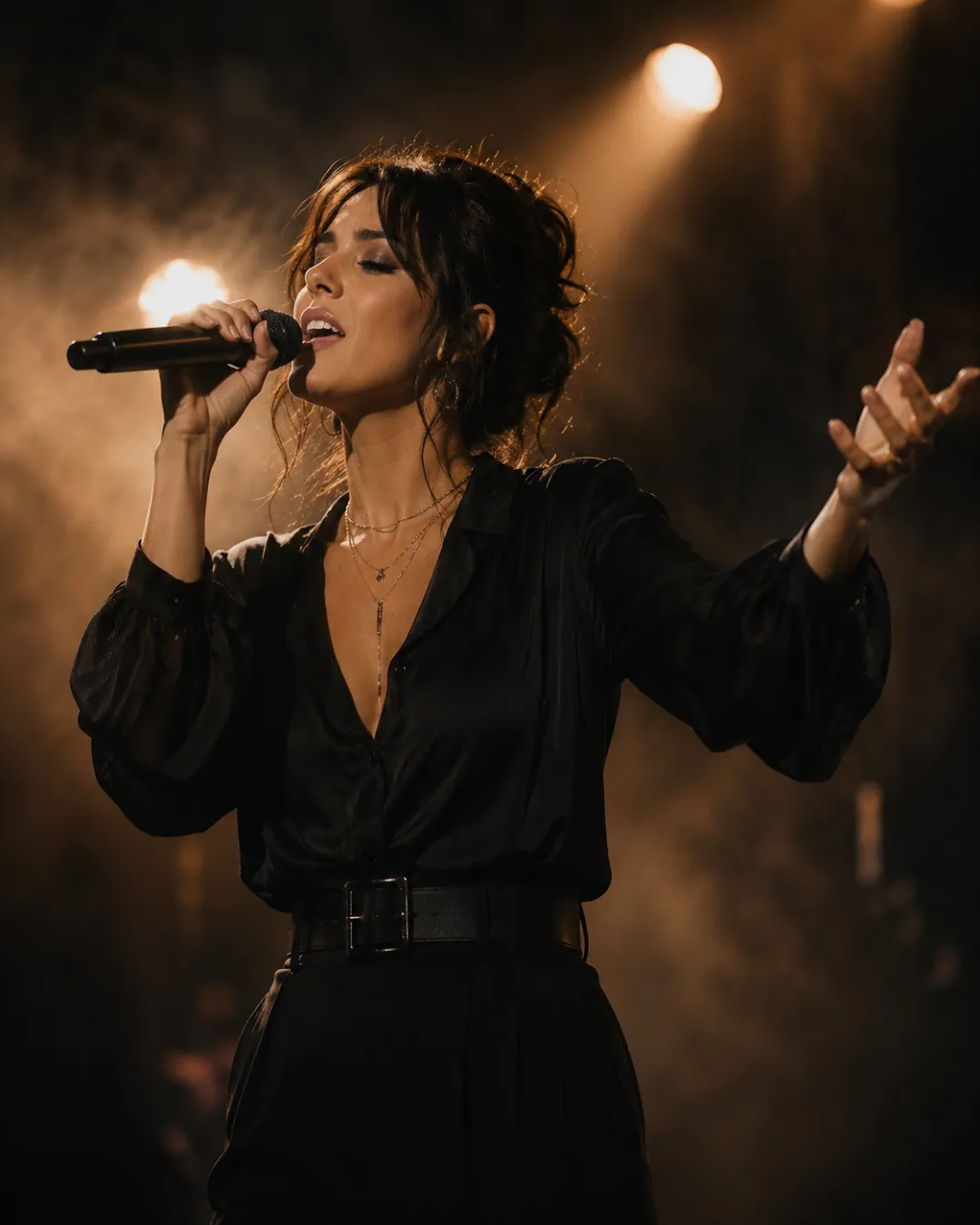 Music · performance
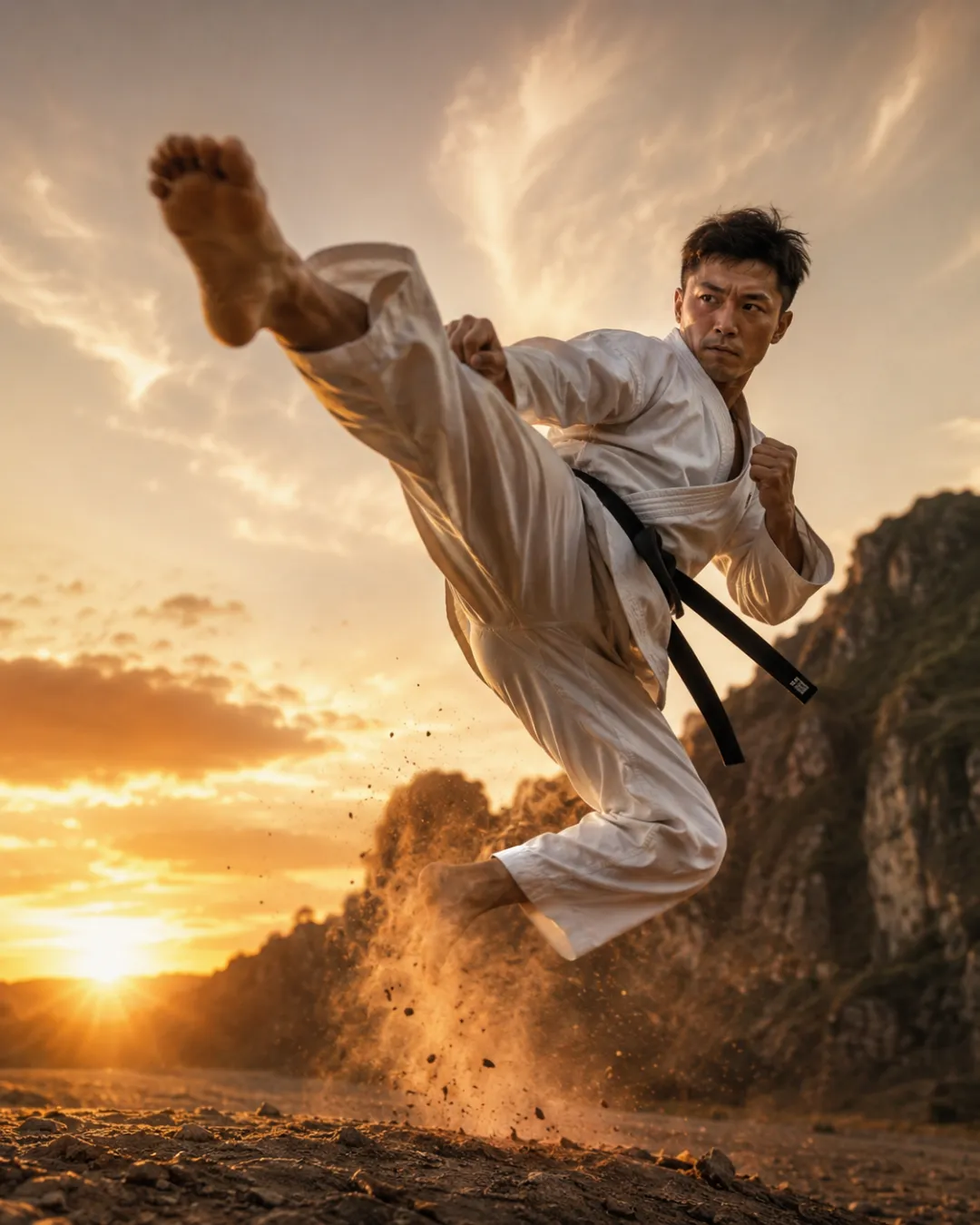 Sports · martial arts
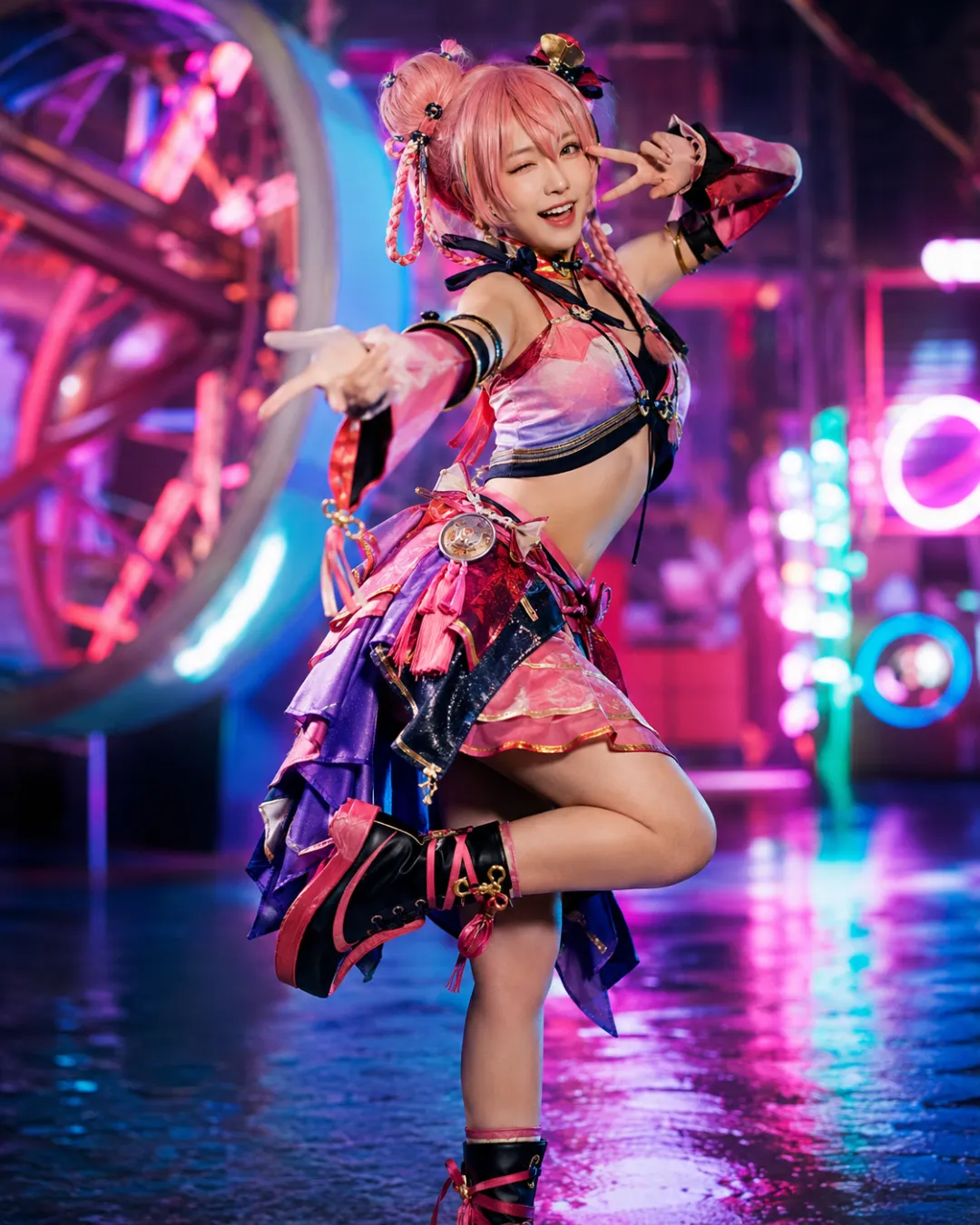 Cosplay · character
Kling 3.0 Motion Control vs Kling 2.6
Wondering how Kling 3.0 Motion Control compares with Kling 2.6? Here is what changed — and why 3.0 is the one you want for faces and hands.
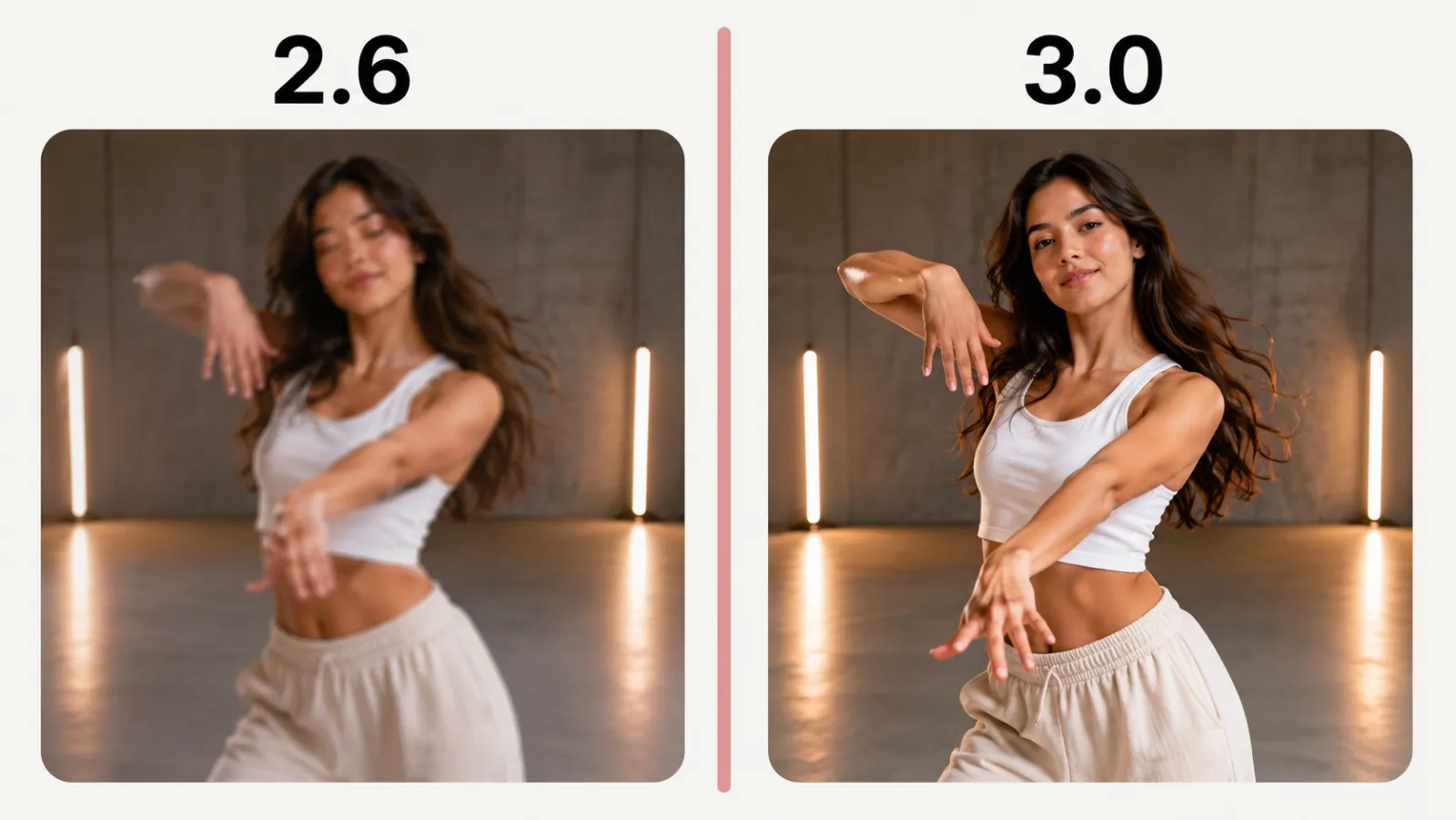
Kling 2.6 Motion Control
The earlier generation could transfer motion, but faces and hands often drifted or warped through fast movement, and longer clips were harder to keep stable.
- Basic motion transfer
- Faces/hands can warp
- Shorter, less stable clips
Kling 3.0 Motion Control
The current generation adds Element Binding for stable facial identity, smoother hand and gesture tracking, and tighter alignment between the reference video and the output.
- Element Binding — stable faces
- Smoother hands & gestures
- Up to 30s, steadier motion
How to Use Kling 3.0 Motion Control in 3 Simple Steps
No account needed to explore — three steps to your first motion-transfer video.
- 1
Upload your character image
Add a clear photo of the character you want to animate — a person, an illustration or a 3D render. Higher resolution gives Kling 3.0 a sharper result.
- 2
Add a reference motion video
Upload or paste the clip whose motion you want to copy. Pick a character orientation — Video for full-body action, Image for portrait gestures — and an optional prompt for style.
- 3
Generate & download
Hit Generate and Kling 3.0 renders your character performing the reference motion in about 2–5 minutes. Preview it, then download the MP4 — no watermark.
Kling 3.0 Motion Control Pricing & Free Credits
Is Kling 3.0 Motion Control free? You can try the generator here and new accounts start with credits. Rendering uses credits priced per second by resolution, so you only pay for the video length and quality you generate.
There is no subscription required to test Kling 3.0 and no watermark on your downloads. When you need more, top up on the pricing page — the same credits work across every image and video model on Imya, including Kling 3.0, Veo 3.1 and Seedance 2.0.
- 720p: 45 credits/s · 1080p: 60 credits/s
- Starter credits apply toward the first render
- No watermark · no subscription required
Kling 3.0 Motion Control API, ComfyUI & Other Ways to Run It
Searching for a Kling 3.0 Motion Control API, a ComfyUI workflow, a Replicate or Higgsfield setup? Those routes work for production pipelines, but they need keys, nodes or credits to wire up. If you just want to copy a motion onto a character and download the clip, the free generator above is the fastest path — no API key, no install, no setup.
Use Kling 3.0 right here on Imya in the browser: upload a photo, add a reference video, and generate. It is the quickest way to test prompts, compare orientations and render a few motion-transfer clips before you commit to any pipeline.
Turn one photo into motion
Upload a character and a reference clip, and let Kling 3.0 Motion Control copy the movement — free to start, no watermark. Starter credits help you test the flow before topping up.
- Free to start
- Element Binding
- Up to 1080p · no watermark
Frequently Asked Questions About Kling 3.0 Motion Control
Everything about running the free online Kling 3.0 Motion Control video generator.
What is Kling 3.0 Motion Control?
Kling 3.0 Motion Control is a feature of Kuaishou’s Kling 3.0 model that copies the motion from a reference video onto a character image you upload. It reproduces the reference movement with your character while keeping their look, using Element Binding to keep faces and hands stable.
How do I use Kling 3.0 Motion Control free online?
On this page: upload a character image, add a reference motion video, pick a character orientation and resolution, then hit Generate. Imya runs Kling 3.0 in your browser — new accounts get starter credits that apply toward the first render.
What do I need — a video or just an image?
Both. Kling 3.0 Motion Control needs a character image (the look) and a reference video (the motion to copy). The character orientation toggle — Image or Video — tells the model how to frame the output; Video suits full-body action, Image suits portrait and upper-body gestures.
Does Kling 3.0 Motion Control support multiple characters?
You generate one character per render, but you can reuse the same reference video across different character images to build multi-character or group scenes — Element Binding keeps each face consistent so the clips cut together cleanly.
What is the maximum duration?
On this page it renders up to 30 seconds in Video orientation and up to 10 seconds in Image orientation, from a minimum of 3 seconds. The output length follows your reference clip up to those limits.
Kling 3.0 Motion Control vs Kling 2.6 — what changed?
Kling 3.0 Motion Control adds Element Binding for stable facial identity, smoother hand and gesture tracking, and tighter alignment between the reference video and the output. In practice that means faces and hands stay clean through complex movement where Kling 2.6 tended to warp them.
Is there a Kling 3.0 Motion Control API or ComfyUI workflow?
Kling 3.0 Motion Control is available through third-party platforms and APIs for production pipelines, but they require keys or setup. The generator on this page is the fastest way to use Kling 3.0 free in the browser with no API key, no ComfyUI nodes and no install.
Why does my Kling 3.0 Motion Control render take a while or fail?
Motion transfer is compute-heavy, so renders take about 2–5 minutes — keep the tab open. If a render fails, it is usually the input: use a clear character image (≥300px, aspect 2:5–5:2) and a reference video under 100 MB, then try again. Credits are only spent on a successful render.
Can I add a prompt to Kling 3.0 Motion Control?
Yes — the prompt is optional. Leave it blank to copy the motion as-is, or describe the scene, lighting or style to steer the look of the result while the reference video drives the movement.
Related AI Video Tools
More ways to create with AI on Imya.
Kling 3.0
The full Kling 3.0 video generator — text-to-video and image-to-video with native audio and multi-shot.
AI Video Generator
The full multi-model video studio — Kling, Veo, Seedance, Hailuo and more in one place.
Hailuo 2.3
MiniMax’s fast image-to-video model — great for quick, lively clips from a single still.