AI Photo to Video Generator Live
Render cinematic clips from text prompts, still images, reference images, or source videos with Veo 3.1, Kling 3.0, Seedance 2, Hailuo 2.3, and more.
- Pay only for what you render
- MP4 download · commercial use
- Uploads now supported
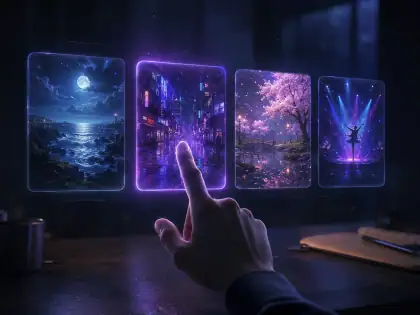
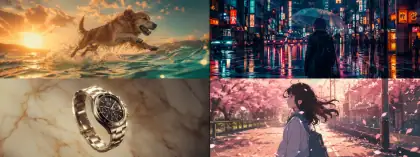
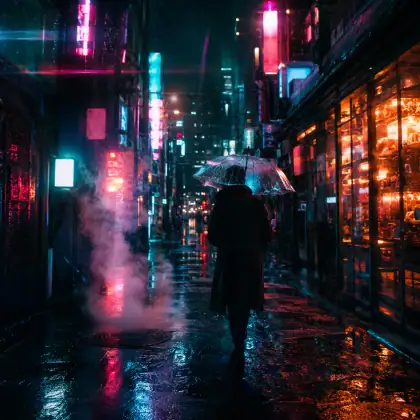
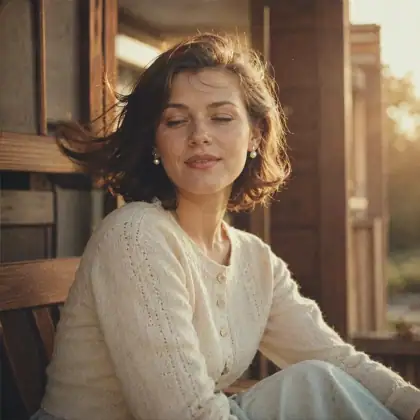
Tap any frame to load its prompt into the planner
What is an AI photo to video generator?
An AI photo to video generator turns a still image, reference set, text prompt, or source clip into a short motion render — a slow camera push, product spin, animated portrait, or cinematic scene. Imya's AI Video Generator routes each request to the best supported model and returns downloadable MP4 results.
Why use Imya's AI video generator?
Photo-first workflow
Built for creators who already have portraits, product shots, travel photos, or AI-generated images they want to bring into motion.
Transparent model routing
Each render shows the selected model, resolution, duration, and credit cost before you send it upstream.
Prompt planner for better motion
Turn vague ideas into structured image-to-video prompts with camera movement, subject action, lighting, and style cues.
Made for the way you share
Plan clips for TikTok, Reels, Shorts, ads, and storyboards with common 9:16, 1:1, and 16:9 aspect ratios.
Multiple input modes
Start from text, a single image, a set of reference images, or an existing video clip without leaving the same planner.
How to use the AI video generator in 3 steps
From an existing photo or a fresh prompt to a rendered MP4 — usually under two minutes to set up.
01Upload a photo or start with a prompt
Choose an image you want to animate, or describe a new video scene from scratch. Either path opens the same prompt planner.
02Describe the motion
Pick a motion style, camera direction, aspect ratio, and clip duration. Add details like lighting, emotion, or scene type to make the brief specific.
03Generate and download
Review the credit cost, send the render, then download the MP4 when the task finishes.
What can you use an AI video generator for?

Social hooks for TikTok, Reels, Shorts
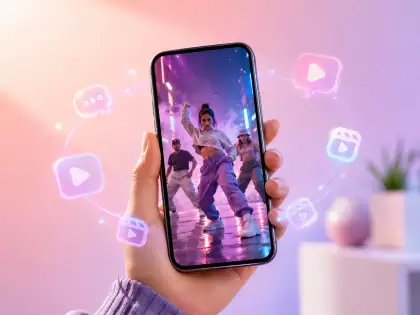
Plan vertical-format AI video clips before you film — turn a single photo into a thumb-stopping opener.

Product ad concepts
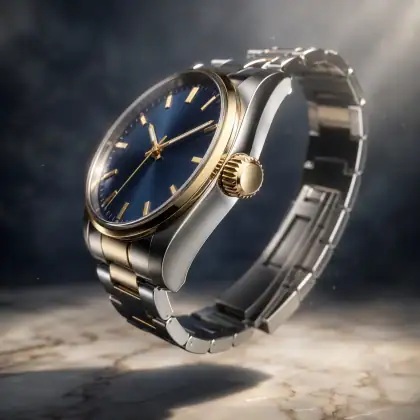
Animate a single product photo into a cinematic spin, push-in, or hover for ad creative iteration.

Photo memories & portrait animation
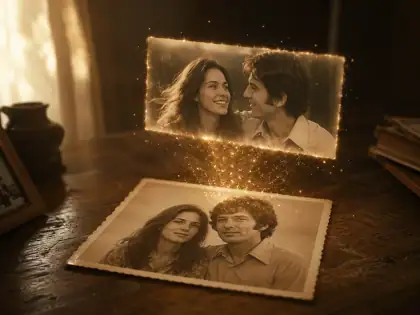
Bring an old family photograph into a subtle living moment — a blink, a smile, hair lifting in soft wind.

AI music video moodboards
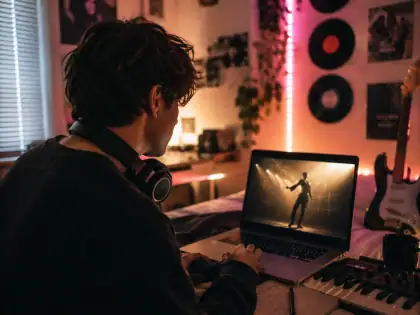
Sketch lyric-driven scenes and silhouette-on-stage frames for indie musicians and music creators.

Anime & character motion
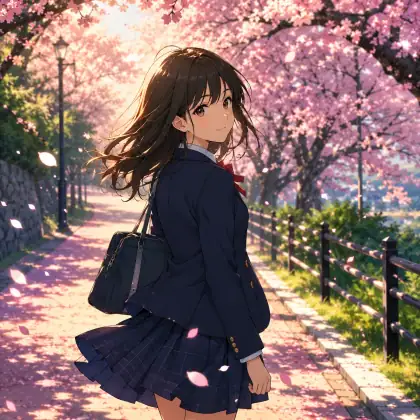
Plan stylized 2D character motion in a cel-shaded frame — anime walks, cherry-blossom fall, golden-hour glow.

Filmmaker pre-viz & storyboards
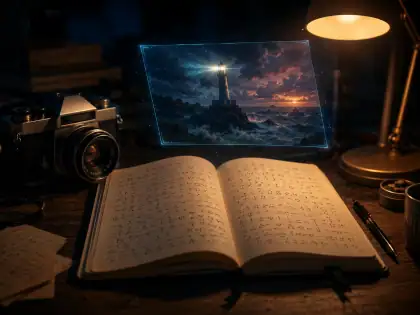
Storyboard a scene before you go to set — block the camera move, lighting, and subject action visually first.
More AI video generator frame previews
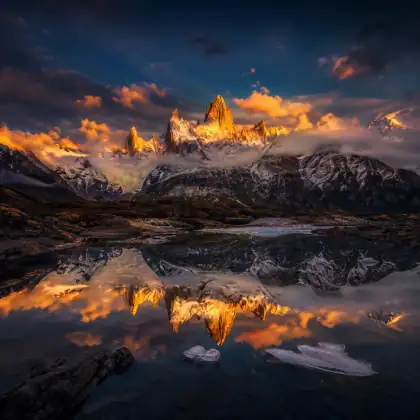
A second selection of concept frames covering portrait animation, product motion, anime, and cinematic landscape.
Preview frame
Preview frame
Preview frame
Preview frame
Preview frame
Preview frame
Preview frame
Preview frame
Image-to-video vs text-to-video: which should you choose?
Two distinct AI video generator workflows, plus two adjacent tool categories you might be comparing against. Pick the one that matches the input you already have.
Image-to-video
- Best for
- Animating an existing photo
- Strength
- More control over subject identity
- Limitation
- Motion depends on the source image
Text-to-video
- Best for
- Creating a new scene from scratch
- Strength
- More imaginative scenes
- Limitation
- Less consistent characters
Template editors (CapCut, Canva)
- Best for
- Fast marketing assets
- Strength
- Predictable editing
- Limitation
- Less generative freedom
Full AI video tools (Runway, Sora)
- Best for
- Finished AI clips today
- Strength
- Real rendering already live
- Limitation
- Often paid, gated, or watermarked
Built transparently for live video rendering
We show the model, mode, resolution, duration, and credit cost before each render. Here is how the AI video generator works today.
Credit cost before render
Every request previews the estimated credit cost so you decide before sending work to the upstream model.
Photo-to-video first
Upload a source image for identity control, or start from text when you want a completely new scene.
Results are pollable
Tasks are tracked by ID, polled until completion, and refunded automatically if the upstream render fails.
Frequently asked questions about the AI Video Generator
Honest answers about supported inputs, models, credits, and output files.
Is Imya's AI video generator live yet?
Yes. Text-to-video is live, and uploaded image, reference-image, and video-edit workflows are wired through the same rendering API.
Is the AI photo to video generator free?
The planner is free to open. Rendering uses credits, and the exact cost appears next to the Generate button before you submit.
Can I turn a photo into a video right now?
Yes. Choose Image → Video, upload a source image, describe the motion, then render with a compatible model such as Veo, Seedance, Kling, Hailuo, Director, or Cinematic.
Can I generate an AI video from text only?
Yes — the planner supports text-to-video prompts in the same panel as image-to-video. Photo-to-video remains the primary focus because uploaded images give you more control over subject identity.
Which AI video models will Imya support?
The current picker includes Veo 3.1, Kling 3.0, Seedance 2, Hailuo 2.3, Director, and Cinematic model families. Available modes vary by provider.
How long will AI-generated videos be?
Durations depend on the selected model. The picker only exposes each model's supported range, from fixed 8-second Veo clips to flexible shorter or longer options on other providers.
Will the AI videos have a watermark?
The page requests non-watermarked output where the upstream model supports that option.
Can I use AI-generated videos commercially?
Commercial usage depends on the upstream model provider's terms and your account plan. Check the selected model's provider terms for restricted uses.
Do I need to sign up to use the planner?
You can browse and plan without an account. Rendering requires sign-in so credits, uploads, tasks, and refunds can be tied to your user account.
How does Imya's AI video generator compare to Runway, Sora, CapCut, or Canva?
Runway, Sora, Canva, and CapCut focus on their own editors or native model stacks. Imya focuses on a lightweight planner with multi-provider routing, credit preview, and direct MP4 results.
Render your first AI video
Start from text, upload a photo, add references, or edit a source clip with the live video planner.
Related AI tools
If the video beta is not what you need today, these AI image tools are live, fully working, and free to try.

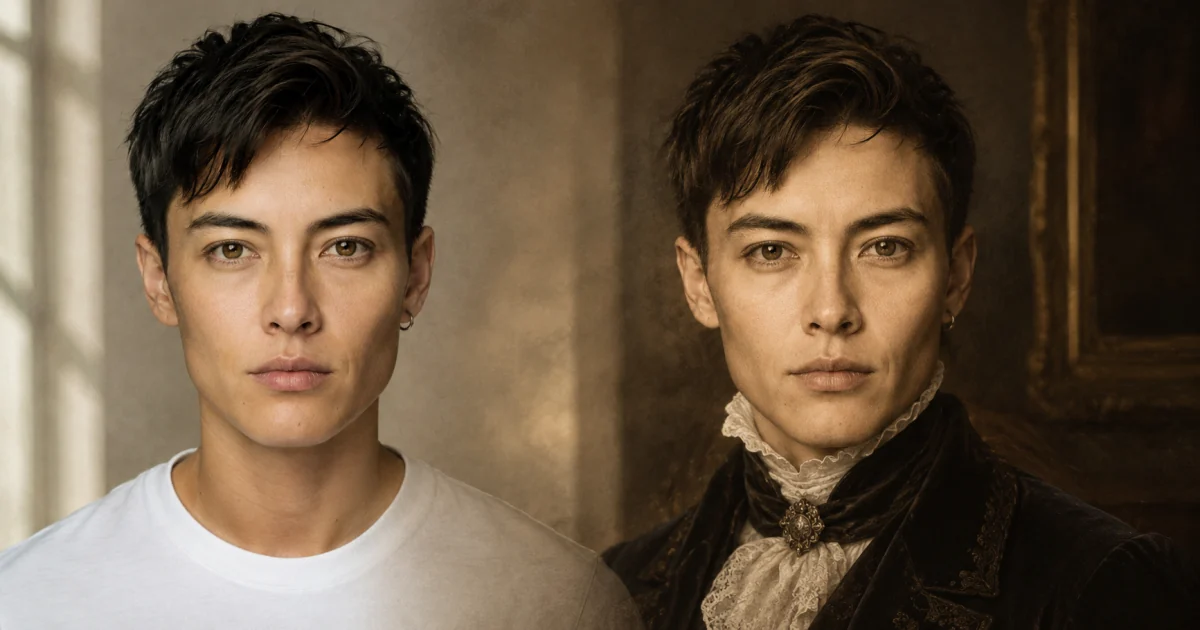
AI Time Travel Photo
Restyle a portrait across ten historical eras — Victorian, Roaring 20s, 1980s, and more.

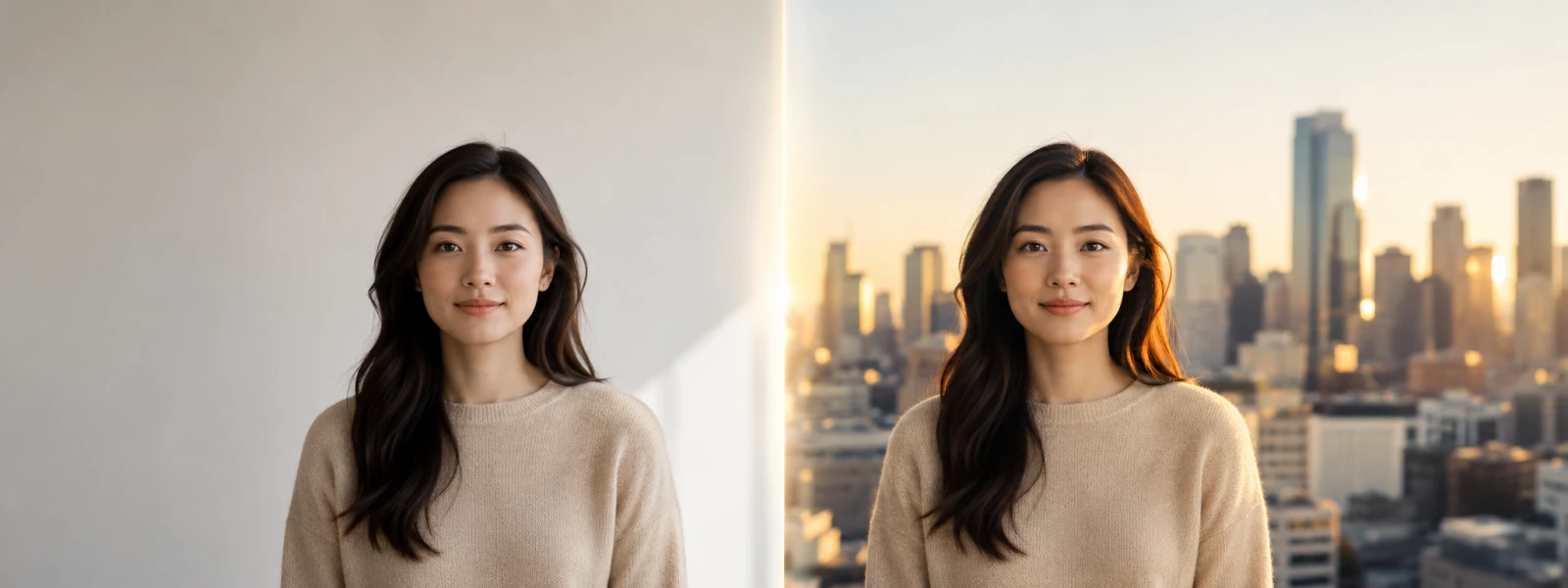
AI Background Changer
Replace any photo background with a photoreal scene — wall to city, studio to nature, in seconds.

AI Hairstyle Changer
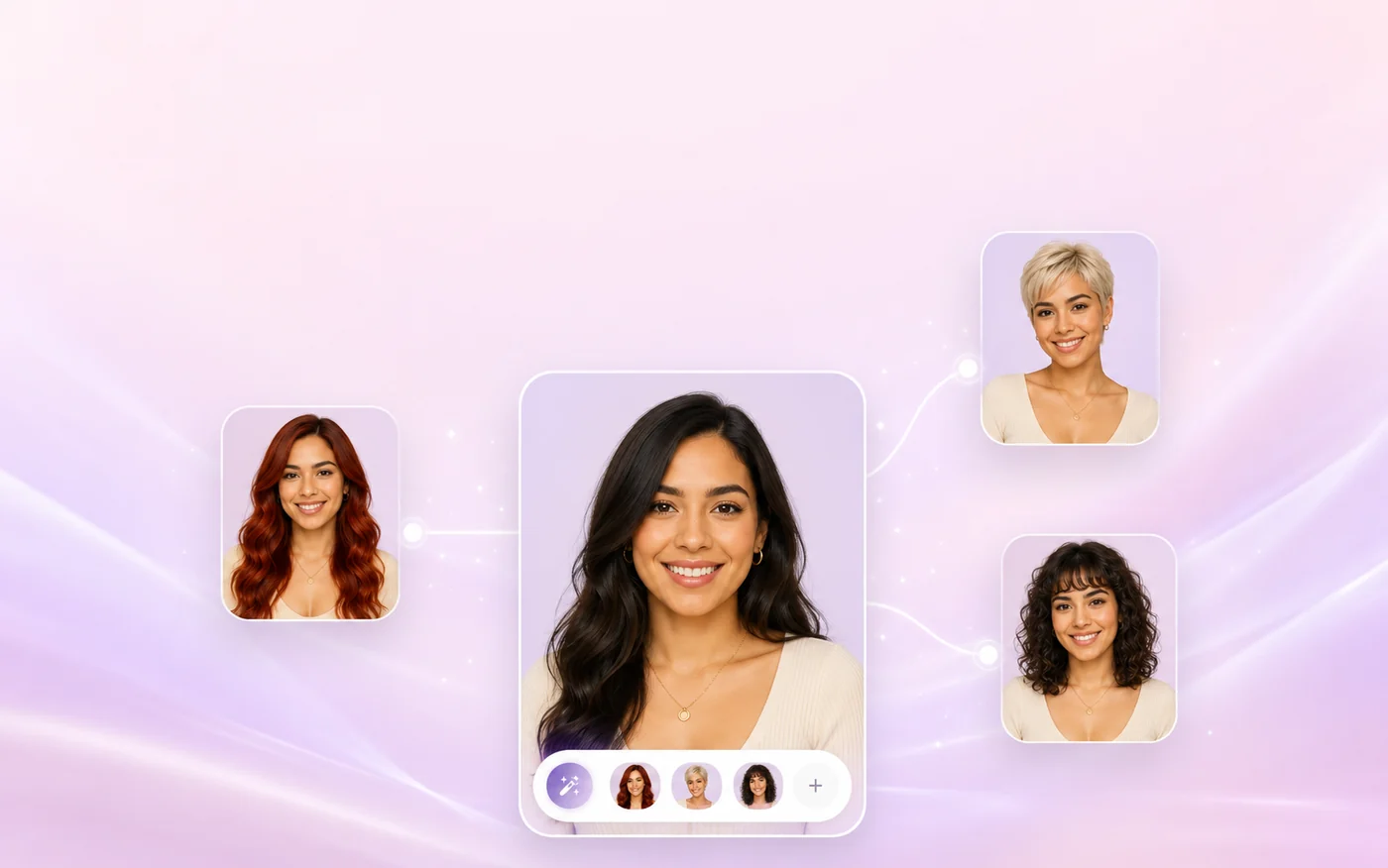
Try new hairstyles and colors on your own photo before you sit down at the salon.

All AI Tools
Browse the full Imya AI image and video toolkit in one place.