GPT Image 2.5
Turn an idea into an image. Give your photos a new direction.
Create and edit images with GPT Image 2.5 Flare or Sunburst. Start with a prompt or reference photos, then choose your aspect ratio and resolution.
Choose GPT Image 2.5 Flare or Sunburst. Both support text-to-image and reference-led editing through KIE, with 1K, 2K, and 4K output.
A starting point for your next image
Choose a direction, make the prompt your own, and explore the result. These original AI-generated illustrations suggest creative possibilities; they are not GPT Image 2.5 benchmarks.
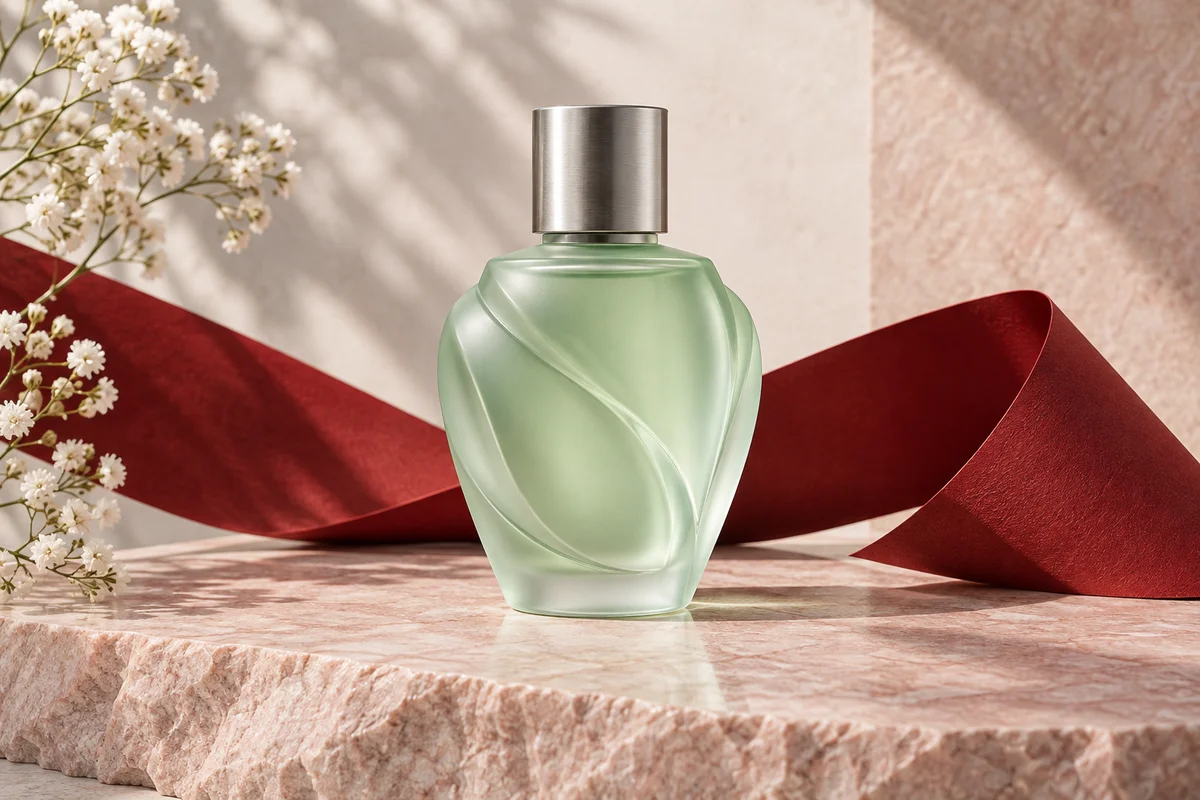
Product photography
A defined material, one light source, and a simple backdrop give a product image a clear visual direction. Change the bottle, surface, or color to match your brief.
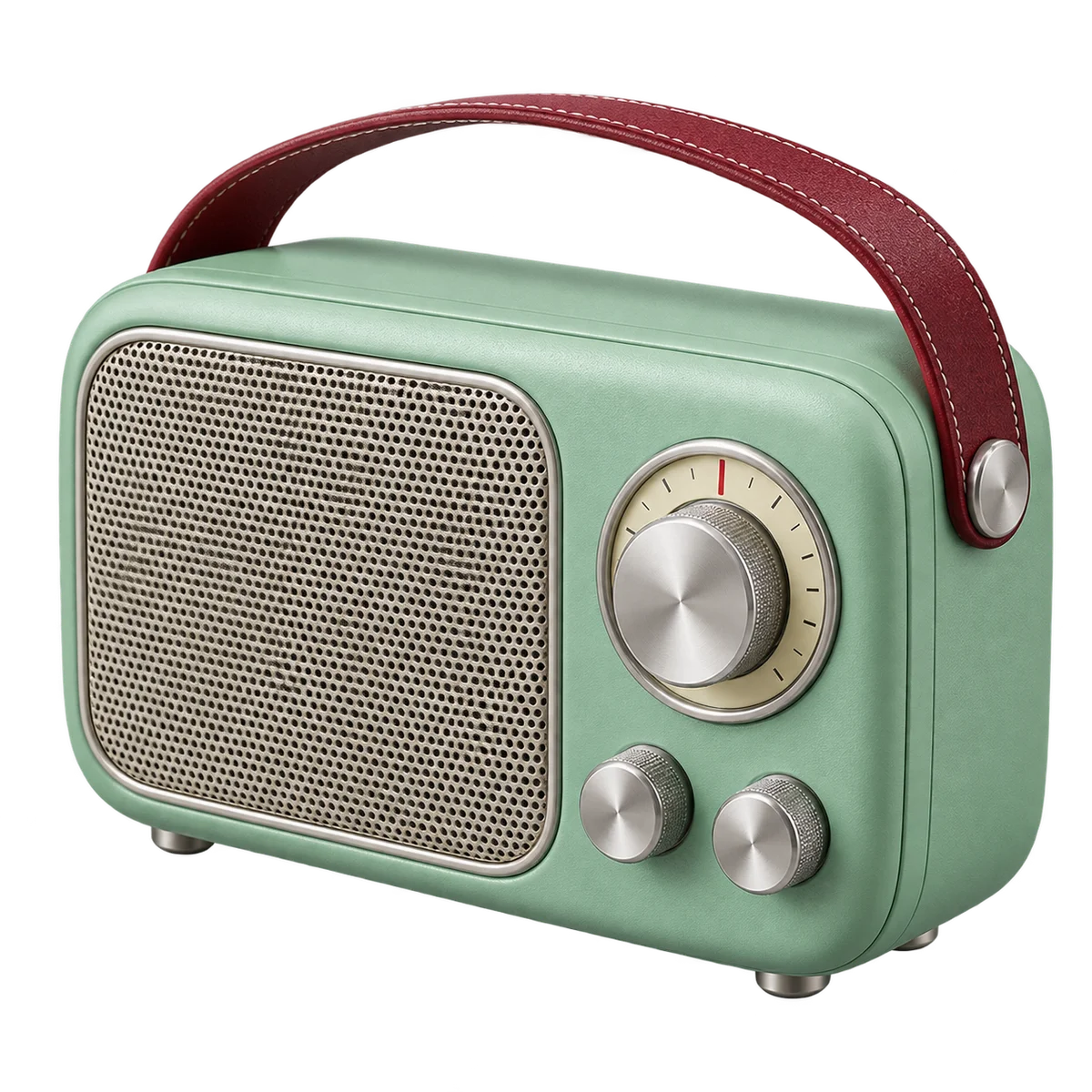
Ready-to-place assets
A single object is a useful starting point for a sticker or composition. The transparent example illustrates the intended asset type; transparency requires a supported model and output settings.
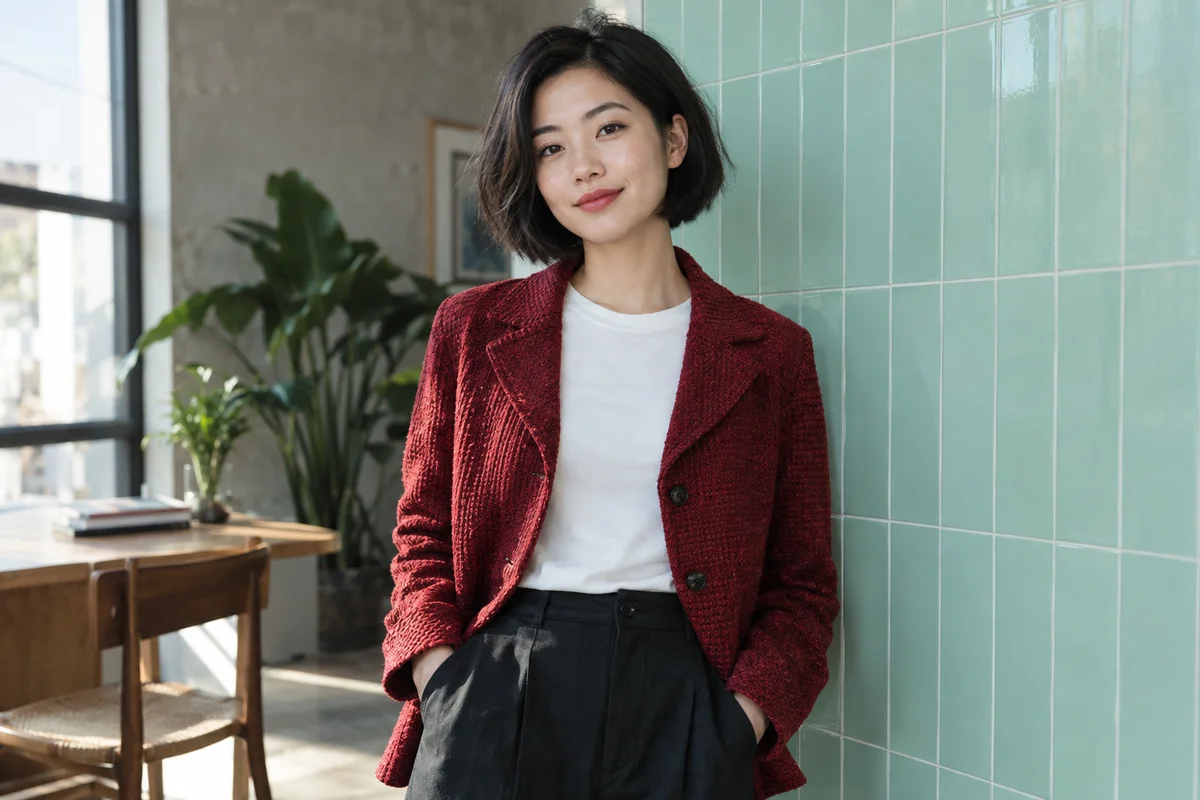
Editorial portraits
Describe the clothing, light, expression, and setting. For a reference-led edit, name both the change you want and the facial details you want to preserve.
What is GPT Image 2.5?
GPT Image 2.5 is OpenAI’s image model family introduced with ChatGPT Images 2.5 on September 8, 2026. The update focuses on image detail, reference fidelity, editing consistency, and generation speed. Those improvements are relevant when a creative brief needs more than one attractive first result: a product series, a character variation, or an image that must survive several revisions.
This page connects GPT Image 2.5 Flare and Sunburst through KIE. With no reference, your prompt goes to the selected text-to-image model; adding references selects its image-to-image endpoint. You can include up to 16 JPG, PNG, or WebP images, each up to 30 MB, with a 120 MB total limit in this tool. The model and resolution selected in the composer continue into your workspace. The creative illustrations below are not measured results from this integration.
More control over the details that matter
Reference-led creation and focused edits
GPT Image 2.5 is designed to follow reference photos more faithfully and make targeted changes while retaining more of the surrounding composition. That matters when you want to replace a background without redesigning a product, or adjust a jacket while keeping a recognizable portrait.
For a useful editing prompt, separate the instruction into what changes and what stays. Specify the new color or setting, then name the subject, framing, and lighting to preserve. Review the full result after every revision. Improved consistency is not an identity lock or a promise that every pixel remains unchanged.
Transparent backgrounds for reusable assets
OpenAI’s native image API documents transparent backgrounds. This web tool uses the KIE integration, whose current Flare and Sunburst contracts expose prompt, references, aspect ratio, and resolution, but no background or output-format parameter. These are different interfaces; native API settings should not be assumed to work here.
The transparent illustration shows a possible design asset, not a promised output of this tool. Describing an isolated object does not guarantee alpha transparency. Inspect downloaded edges and the actual alpha channel before placing an image into a design; an image of a checkerboard is not transparency.
Composition, materials, and readable text
GPT Image 2.5 can help translate a detailed visual brief into a coherent composition. Name the subject first, then describe the material, viewpoint, light, and space for any headline. Specific choices are usually more useful than a long sequence of adjectives such as amazing, perfect, or best.
For poster text, put the exact wording in quotation marks and keep it short. Check spelling, contrast, alignment, and small lettering in the exported image. The official guide still lists text rendering and precise layout among the limitations, so treat an attractive result as a draft to inspect rather than an automatically approved final asset.
From a clear prompt to a useful image
Describe the outcome
Begin with the image you need: a product shot, portrait, or graphic. Add the subject, setting, and intended use. Choose GPT Image 2.5 Flare or Sunburst in the tool, and keep your first brief specific enough to compare later variations.
Add a reference if needed
Use a reference when an existing subject or visual direction matters. Choose a clear JPG, PNG, or WebP image. Explain the requested edit instead of asking the model to guess what should change. Only upload material you have permission to use.
Review settings and credits
Select the aspect ratio for the destination and choose an available resolution. The composer updates its credit estimate with the settings. Sign in to continue; the prompt and reference are preserved through the login flow. Review the restored request before submitting.
Generate, inspect, and refine
Generation continues in your imya workspace, where the existing result and history tools handle the request. Check the full image before downloading. For another variation, change one part of the brief at a time so you can understand which instruction affected the result.
GPT Image 2.5 vs GPT Image 2
GPT Image 2.5 Flare and Sunburst are selectable here; GPT Image 2 remains available in its existing tool and the workspace. This overview describes documented capabilities, not a measured comparison of imya generation runs. Compare using the same brief, references, dimensions, and evaluation criteria.
| Area | GPT Image 2 | GPT Image 2.5 |
|---|---|---|
| Availability | Existing tool and workspace | Flare and Sunburst here |
| Reference fidelity | Existing reference workflow | Improved subject preservation |
| Editing | Review each revision | More reliable multi-turn edits |
| Speed | Comparison baseline | OpenAI reports up to 50% lower latency |
| API choices | Provider-dependent | Flare and Sunburst |
GPT Image 2.5 API: Flare, Sunburst, and pricing
GPT Image 2.5 Flare is positioned for fast everyday creation, while Sunburst emphasizes precision in demanding generation and editing workflows. Start with the result you need, then compare quality, completion time, and total cost with your own representative prompts. Faster output alone does not prove a lower per-image charge.
This tool uses KIE’s fixed per-image integration: 1K, 2K, and 4K have separate costs. imya credits are calculated for your account and shown before submission; they are not OpenAI API tokens or KIE credits. Membership discounts follow the existing account rules. Sign in to generate and check the displayed total. No unlimited free access or verification exemption is promised.
Questions about GPT Image 2.5
Can I generate with GPT Image 2.5 here today?
Yes. Choose GPT Image 2.5 Flare or Sunburst, enter a prompt, and optionally add reference images. Sign in, review the account credit estimate, and continue to your workspace. The selected model is sent to KIE; this page no longer substitutes GPT Image 2.
Is GPT Image 2.5 free to use?
ChatGPT access, OpenAI API billing, and imya credits have different rules. On imya, eligible signup or reward credits can be used within the current account rules. Check your balance and the displayed generation cost. This page does not offer unlimited free GPT Image 2.5 generation.
Can GPT Image 2.5 create transparent PNG files?
The OpenAI native API documents transparent output, but the KIE contracts used by this web tool do not expose a background or output-format setting. This tool therefore does not promise transparent PNG files. A white background or drawn checkerboard is not real alpha transparency.
Which GPT Image 2.5 model should I choose?
Flare is oriented toward speed and everyday creation; Sunburst is intended for work that benefits from more editing precision. Compare them on the images you actually need. Neither model name alone guarantees a particular turnaround time or a flawless result.
Will GPT Image 2.5 keep a face or product exactly the same?
Reference fidelity and editing consistency are improved, but not guaranteed. State the features you want to preserve and inspect each result. For product work, check labels, geometry, colors, and reflections; for portraits, check identity and small facial details.
How should I write a GPT Image 2.5 prompt?
Describe the subject, composition, lighting, and intended use in plain language. For edits, explicitly separate what should change from what should remain. Keep embedded text short and exact. A clear brief is more useful than promising a resolution or capability by writing it into the prompt.
Does GPT Image 2.5 support commercial projects?
Review the applicable provider terms and your rights to uploaded references. Generated output can still contain errors or resemble protected material. Before publishing an advertisement, logo, or product image, review it for accuracy and suitability for your project.
Are the images on this page GPT Image 2.5 benchmarks?
No. They are original AI-generated creative illustrations made for this page. Their captions identify that distinction. They show potential creative directions without claiming that imya has already run a GPT Image 2.5 comparison or delivered these exact results through this tool.
Start with your next image
Bring a clear idea or a reference photo. See the current model and credit estimate before continuing.
Back to the image toolimya.ai is an independent product, not affiliated with or endorsed by OpenAI. GPT and ChatGPT are OpenAI trademarks.