
Text-to-video
Start from a written scene and choose a supported aspect ratio, duration and quality.
Turn a written idea or image into motion: direct the subject, camera and sound, then carry the complete setup into the Imya workspace.
This page saves a local draft only. KIE is called and credits are used only from the workspace.
Your prompt, media and all five mode settings carry into the Imya workspace.
1–15 sec
Flexible clip duration
360p–1080p
Four output tiers
5 modes
Text, image, transition, reference, extend
Audio + multi-shot
Optional directing controls
TEXT OR IMAGE, ONE SHORT VIDEO
PixVerse V6 supports both text-to-video and image-to-video. Instead of describing only what should appear, you can direct what moves, how the camera behaves and how the scene develops over time.
The model also exposes native-audio and multi-clip controls in its core text and image workflows. That makes it useful for short ads, cinematic concepts, social stories and visual transitions that need more than a single static-looking shot.
Start from a written scene and choose a supported aspect ratio, duration and quality.
Animate a visual reference while keeping the starting subject and composition clear.
Request environmental sound and scene audio as part of the generation.
Ask for multiple visual beats instead of forcing every idea into one camera setup.
CHOOSE THE RIGHT INPUT
Text defines the creative range; an image anchors identity, product shape and composition. Clearer input makes motion, camera and sound easier to direct.
Describe the subject, action, environment, camera and sound. Select an aspect ratio from cinematic 21:9 to vertical 9:16.
A midnight tram crosses a rain-soaked plaza, low tracking shot, reflections ripple under the wheels, distant bell and soft city ambience.
Upload a JPG, PNG or WebP start frame, then describe motion and pacing. The source image guides the composition; the prompt directs the change.
The coat lifts in the wind as birds circle upward, camera arcs slowly from profile to a wide rear view, restrained natural movement.
Do not crop the subject against the edge it should move toward. Negative space gives the motion somewhere to go.
Try: frame slightly wider than the final close-up.
Match landscape images to 16:9, vertical images to 9:16 and square images to 1:1. Large ratio changes force reframing.
Try: Auto when preserving the source composition matters most.
SHOT IDEAS
These imagegen-made visuals are art-direction references for the page—not verified PixVerse V6 outputs. Each card shows how to turn a visual idea into a clearer video prompt.
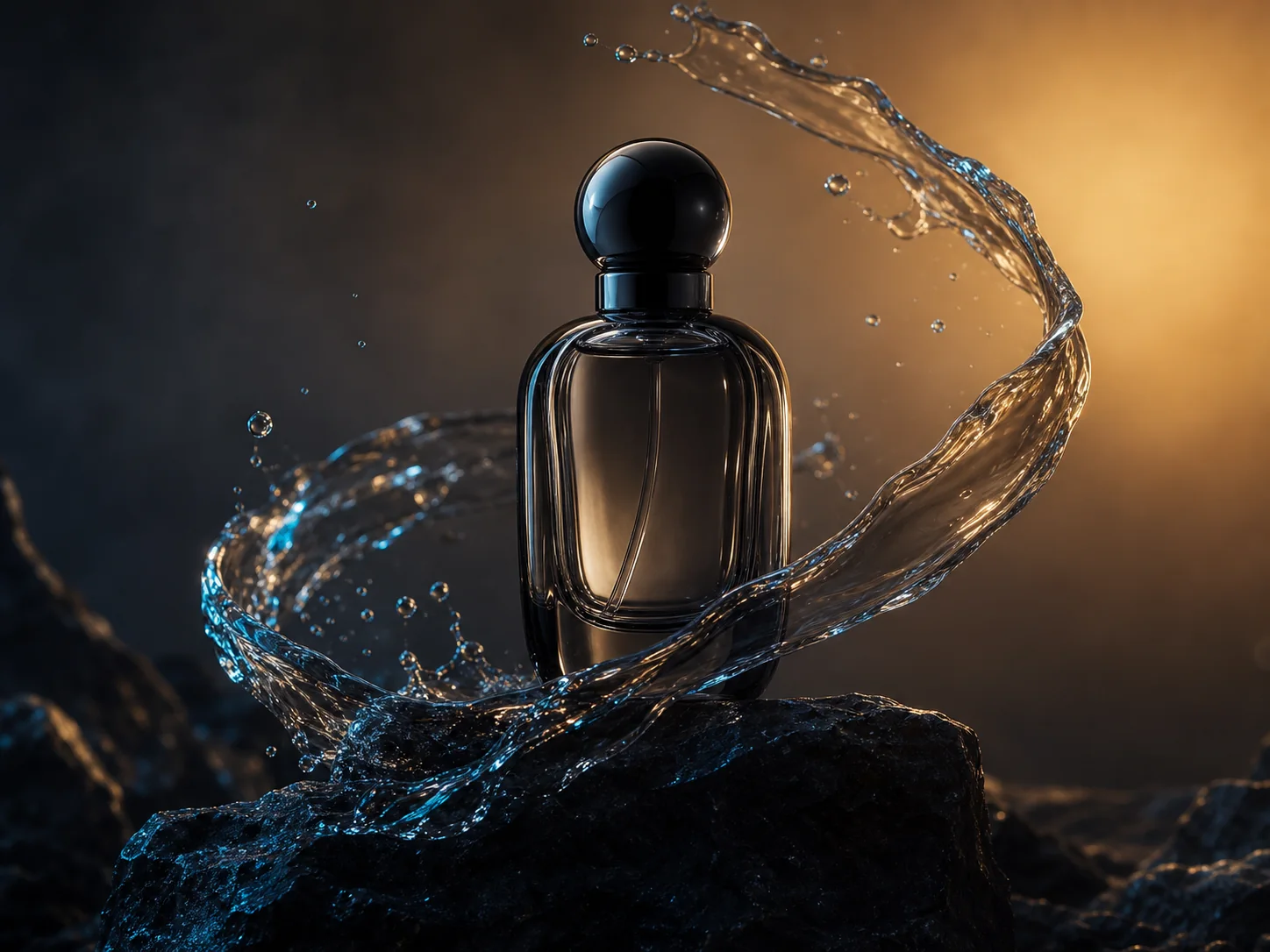 Marketing visual
For product ads, direct reflections, liquid, particles and camera movement around one stable hero object.
“Macro orbit around the bottle, water ribbon sweeps clockwise, amber light blooms through the glass, crisp splash audio.”
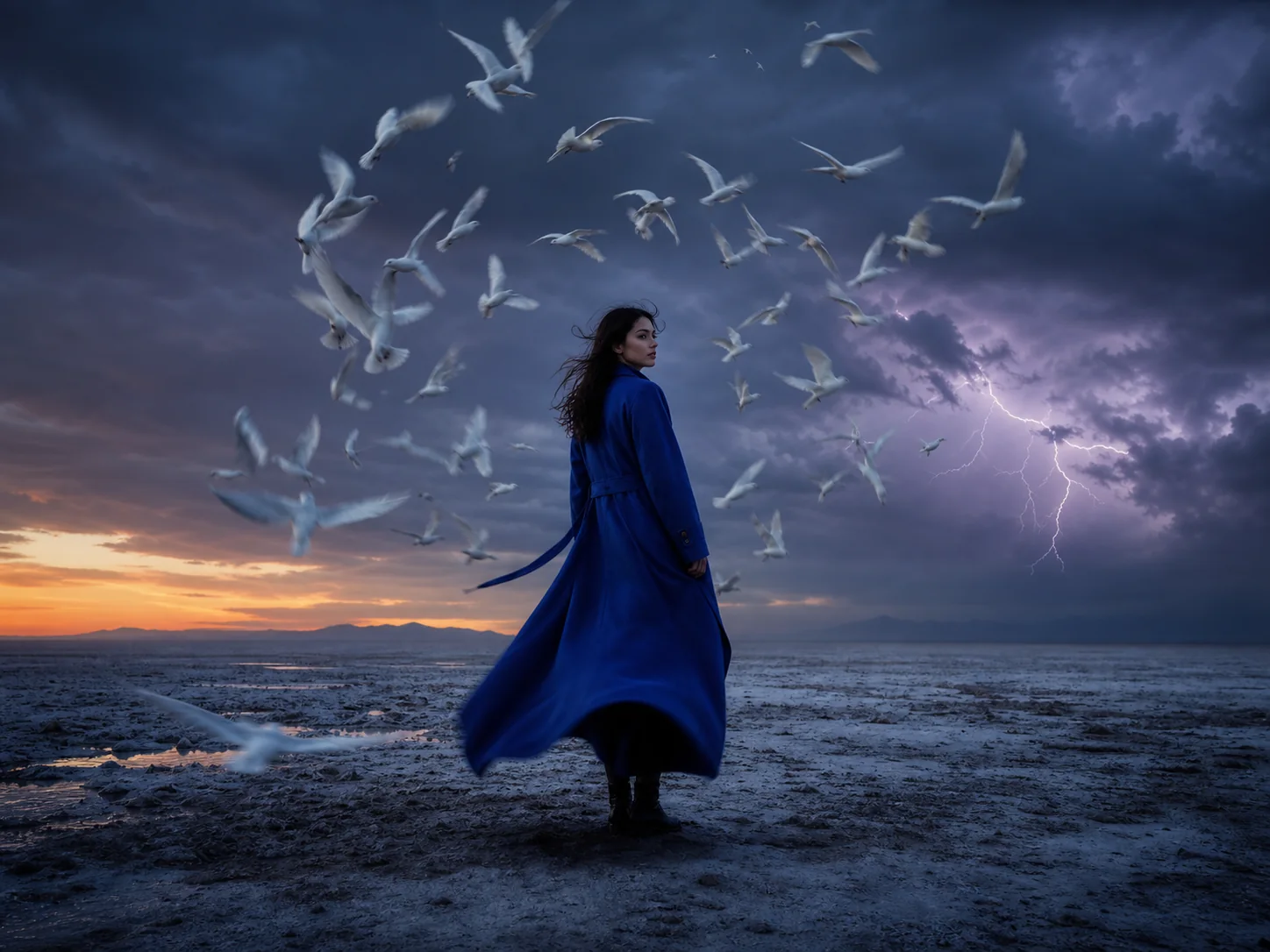 Marketing visual
Use one readable action, one camera move and one atmospheric change instead of stacking unrelated events.
“Wind catches the cobalt coat, birds rise in a spiral, slow arc from profile to wide shot, distant thunder and wing sounds.”
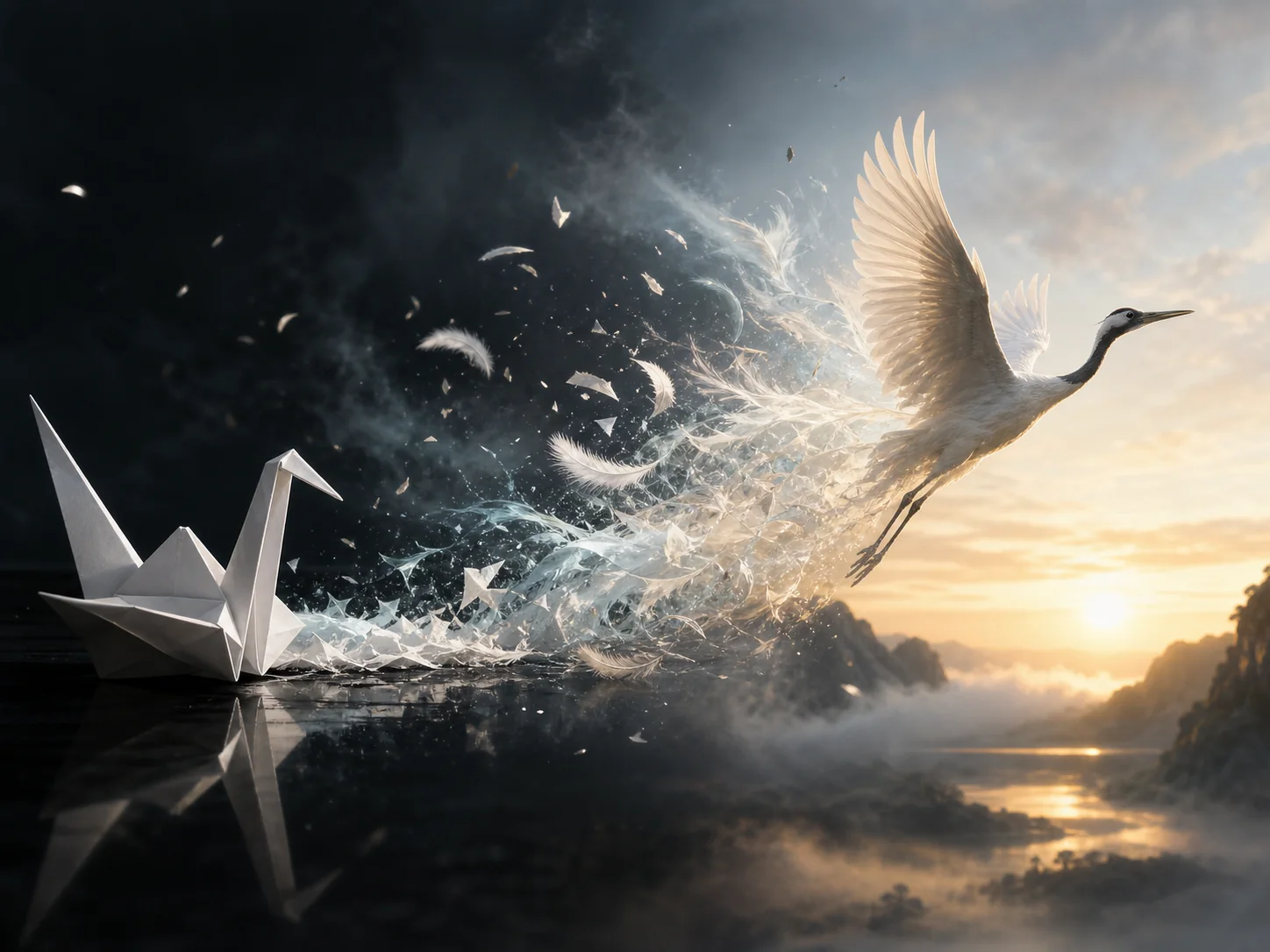 Marketing visual
Transformation prompts work better when the material change and direction of travel are visually explicit.
“Paper folds loosen into luminous feathers, the crane becomes alive and lifts toward sunrise, one continuous left-to-right motion.”
PIXVERSE V6 PROMPT GUIDE
A useful prompt tells the model what must stay recognizable and what is allowed to change. Put the most important motion early and keep the camera instruction concrete.
Subject + action + environment + camera + light/style + sound + pacing
Name the person, object or creature and the visual detail that must remain consistent.
Prefer turns, lifts, ripples, folds, drifts or accelerates over vague words like dynamic.
Specify dolly, orbit, pan, crane, handheld or locked-off—and include direction or speed.
When native audio is enabled, call out ambience, impacts, voice or material sounds that belong in the scene.
Complete example
“An unbranded glass perfume bottle on black basalt; the camera makes a slow clockwise macro orbit while a clear water ribbon rises around it; cool cyan reflections, warm amber backlight, crisp splash and low room tone, elegant controlled pacing.”
One hero object · one orbit · one material effect · two lighting cues · one sound layer · one pacing instruction.
HOW TO USE PIXVERSE V6
Start with text for open exploration, or add an image when identity, product shape or composition must be anchored.
Write the action and camera move, then choose duration, quality, aspect ratio and optional audio or multi-shot controls.
Review the complete brief and live credit estimate, then carry the settings into the Imya workspace for final submission.
FORMATS, LIMITS & CREDITS
These limits reflect the current PixVerse V6 forms documented by KIE. Product settings can change, so the workspace should remain the final source for a live task configuration.
Duration
1–15 seconds
Quality
360p · 540p · 720p · 1080p
Text ratios
16:9 · 4:3 · 1:1 · 3:4 · 9:16 · 2:3 · 3:2 · 21:9
Prompt length
3–5,000 characters
Image formats
JPG · PNG · WebP · up to 20 MB
Core options
Native audio · seed · multi-shot
Longer clips, higher resolution and native audio cost more upstream. Imya shows the applicable credit estimate before a generation request is submitted.
QUICK MODEL FIT
Model choice should follow the input and directing control you need—not a generic “best model” label.
Input
Text or image
Controls
1–15s, up to 1080p, native audio, multi-shot
Choose it when
You want flexible duration plus sound and shot planning in one workflow.
Input
Image
Controls
1–15s, source-aware aspect ratio
Choose it when
You already have a strong start frame and want a focused image-animation path.
Input
Text, image or references
Controls
Native audio and advanced reference workflows
Choose it when
Character continuity or reference-driven control is the main requirement.
Availability, upstream behavior and pricing can change. Compare the live settings shown before each task.
FIX THE DRAFT
When a result drifts, simplify one variable at a time. Reusing the same prompt while changing the source image, duration, ratio and camera move together makes it difficult to learn what helped.
The source is soft, partially hidden or the prompt asks for a large turn that reveals unseen detail.
Use a sharper source, reduce the turn, shorten the clip and explicitly preserve the face, label or product shape.
Several subject actions, environmental effects and camera moves compete in a short duration.
Keep one subject action and one camera move. Remove style words until the physical movement reads clearly.
The selected aspect ratio differs greatly from the uploaded image, leaving the model to invent a new composition.
Try Auto or pre-crop the source to the final ratio. Leave room around the subject before generating again.
The prompt describes mood and appearance but does not name an observable action or camera direction.
Replace vague words with verbs and distance: takes two steps, turns slowly, camera pushes in, or light moves left to right.
PRIVACY & SUBMISSION
This page supports all five PixVerse V6 modes. Prompt, media and settings are saved as a local draft, then uploaded and submitted from the Imya workspace.
Read the full Imya Privacy PolicyVisit the official PixVerse websiteThis page saves a local draft. KIE is called and credits are used only from the workspace.
After final review and Generate, Imya uploads media and submits KIE. Credits are used after task creation; failures follow the existing refund path.
The page visuals were created with imagegen to explain shot briefs. They are not verified PixVerse V6 output samples.
PIXVERSE V6 FAQ
PixVerse V6 is an AI video model family for creating short videos from text or images. Its current KIE forms include text-to-video, image-to-video, transition, reference-to-video and extension workflows.
Yes. The text-to-video form accepts a 3–5,000 character prompt, 1–15 second duration, four quality tiers and multiple landscape, square, portrait and cinematic aspect ratios.
Yes. PixVerse V6 image to video accepts JPG, PNG or WebP references up to 20 MB. The prompt should focus on subject motion, camera behavior and pacing.
Native audio is an optional control in the current text-to-video and image-to-video forms. Add the intended ambience or sound effects to the prompt when you enable it.
The current documented range is 1–15 seconds with 360p, 540p, 720p or 1080p output.
The form is free to configure and shows a credit estimate before submission. Credits are used only after you click Generate and an upstream task is accepted; free-credit availability depends on the account and plan.
No. They are original illustrative marketing visuals created with imagegen to explain possible shot briefs. They are not verified PixVerse V6 output samples.
OTHER VIDEO MODELS
Choose the input, write one clear action and camera move, review the live credit estimate, then continue to the Imya workspace.
Start with PixVerse V6