You Can Feed Seedance 2.5 Fifty References. Here's Why You Shouldn't.
How to tell reference generation, video editing and extension apart, how many reference inputs to actually use, and the rules in ByteDance's manual that will cost you a re-render.
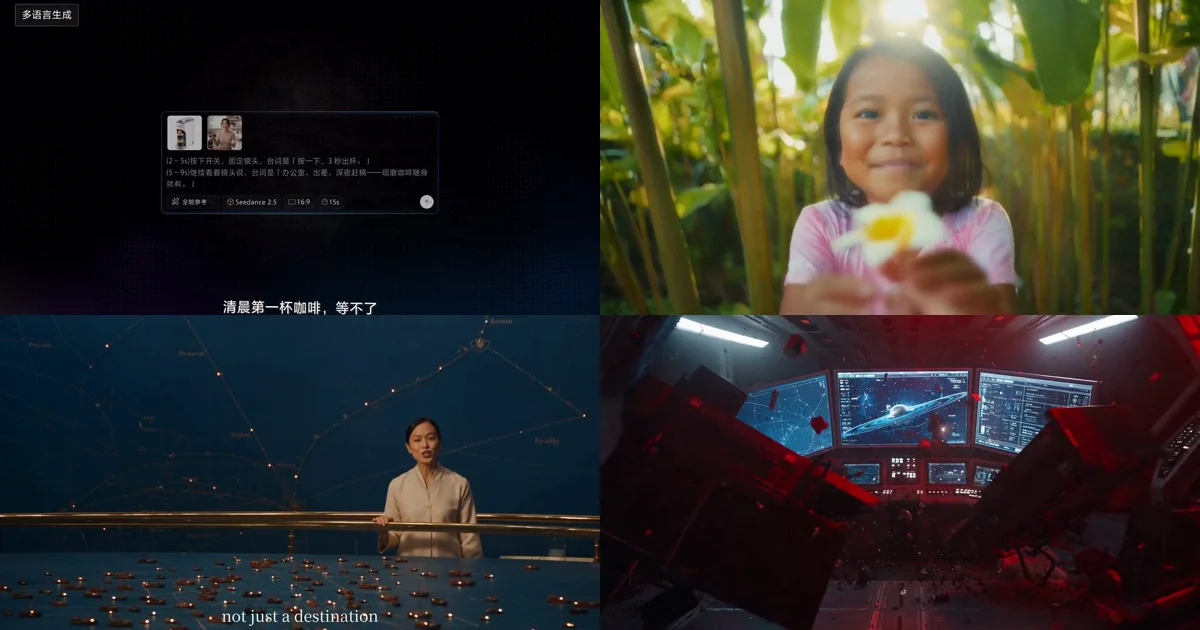
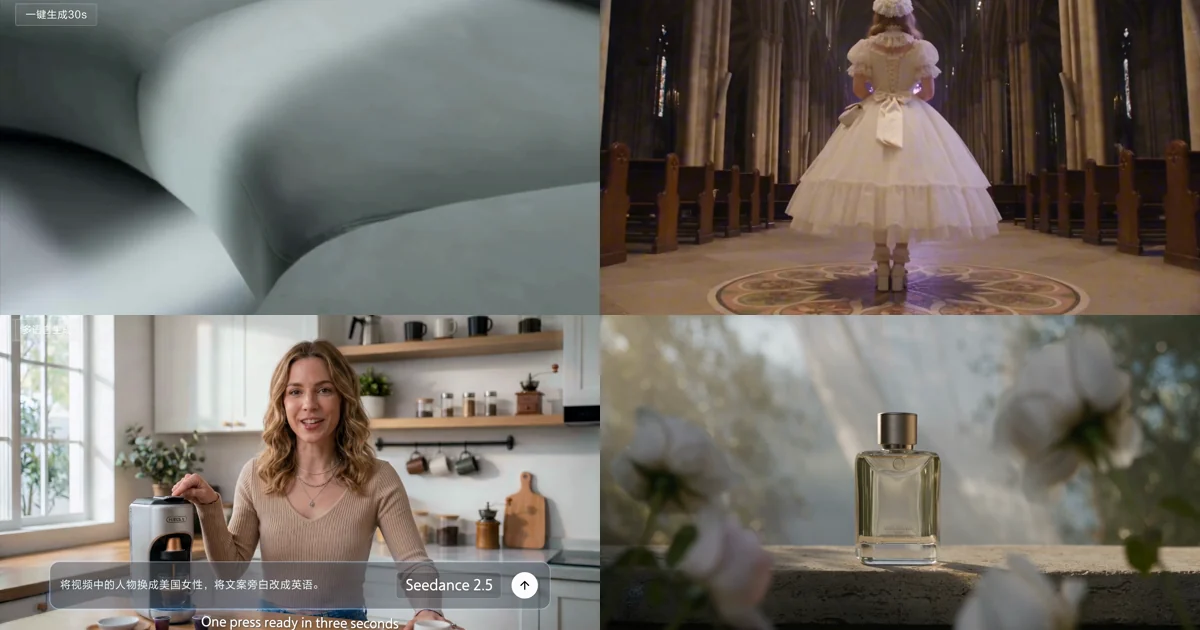
The headline number for Seedance 2.5 is fifty. Fifty reference inputs in one generation — thirty images, ten videos, ten audio clips.
My first instinct was to max it out. More references, more control, right?
Wrong — and ByteDance says so in their own manual. Buried in section 2.3 is a recommendation almost nobody quotes: keep your subject references under five.
Not fifty. Five.
What you get here: how to tell three easily confused capabilities apart, the proportioning numbers ByteDance actually publishes, and three hidden rules that will cost you a re-render.
1. Tell three things apart, or the prompt is wasted
ByteDance admits it directly in the manual: reference, editing and extension "are frequently confused, leading to misaligned prompts and improperly cited material, ultimately undermining the controllability and stability of the result."
When the vendor flags a pitfall unprompted, it is a common one.
The test is a single question: do you already have a finished cut?
| Existing cut? | What you want | Prompt shape | |
|---|---|---|---|
| Reference generation | No | Build a new video from zero | Generation request + @videoN @imageN @audioN |
| Video editing | Yes | Change part of it | Change request + @video1 (source) + optional material |
| Video extension | Yes | Append before or after | Change request + @video1 (source) + optional material |
Reference generation: eight sub-capabilities
For when you have nothing yet. The manual lists eight:
| Sub-capability | What it references |
|---|---|
| Subject reference | Appearance ID or voice of a person, object, setting or virtual character |
| Motion reference | Action, expression, camera movement, concept, effects |
| White-model reference | Motion data from a white-model clip, then rendered |
| Style reference | Overall style of an image or clip |
| Audio reference | Music, melody, dialogue, timbre |
| Storyboard reference | Subject, action and plot from a storyboard grid |
| Keyframe reference | First frame, first and last frame, multiple keyframes |
| One-click assembly | Chaining several pieces of material into a short |
Video editing: five sub-capabilities
For when you have a cut and want to change one part:
| Sub-capability | What it does |
|---|---|
| Instruction editing | Change with text, supports timestamp ranges |
| Reference-image editing | Change with text plus an image — a specific outfit, say |
| Adding a subject | Insert a person, prop or effect |
| Removing a subject | Delete a watermark, rig or named object; the gap fills itself |
| Audio editing | Swap music, add effects, change a voice |
Video extension: three sub-capabilities
| Sub-capability | What it does |
|---|---|
| Extend backward | Write forward from the last frame |
| Extend forward | Fill in what happened before the first frame |
| Seamless transition | Feed two clips and generate the bridge between them |
The cost of choosing wrong: you want to change the wardrobe in a finished cut, but you write it as reference generation. The model reads that as "make a new video referencing this one" — and the whole frame changes. Your material was fine; the framing was not.
2. The three-step editing shape — skip one and it breaks
The manual gives a compact framework:
① Point at the source cut with @video1 ② Name the object and target of the change — supply @imageN for a replacement subject, or describe the object and position directly for additions and removals ③ Lock the untouched areas with "keep everything else unchanged"
Step three is the one people skip, and the one that matters most. Without it, the model helpfully revises things you never mentioned.
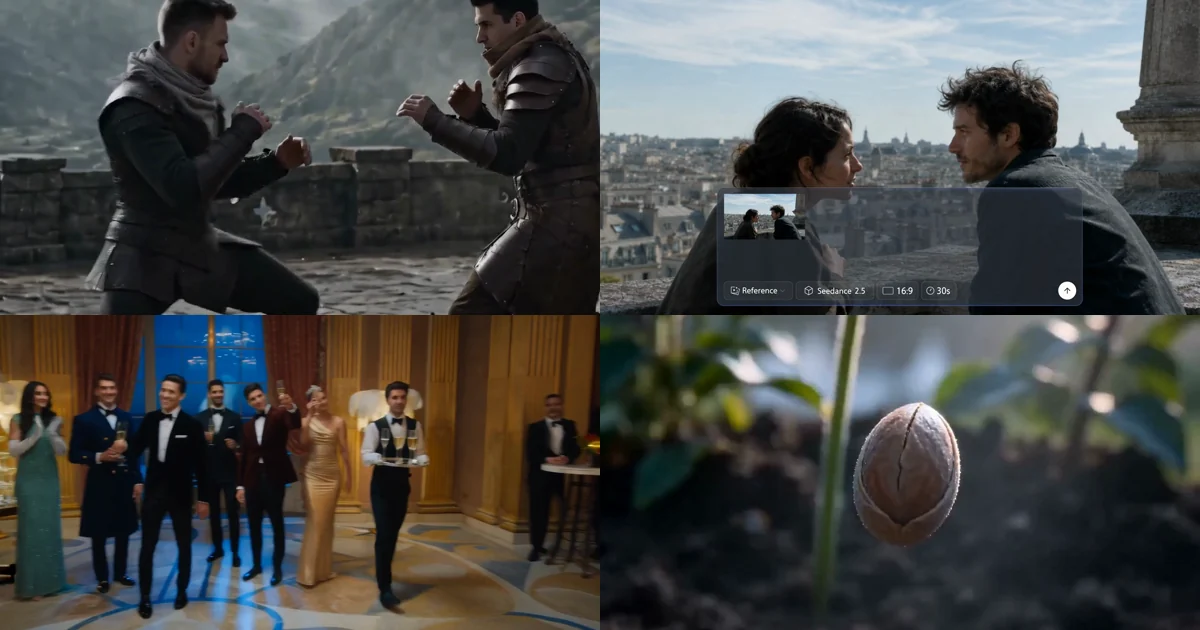
Here is a clean example. It replaces both the setting and two characters' wardrobes, while the choreography stays frame-for-frame:
Change the two-person martial arts plate @video1 into the feeling of an unarmed
probe before a bladed duel.
Replace the setting with a medieval stone-keep platform, an old courtyard, a
mountain fortress terrace or a plain stone-brick duelling ground; background of
castle walls, wind, mist and a distant ridge line, flat stone ground @image1.
Replace the dark-clothed man's outfit with @image2, and the light-clothed man's
with @image3. The movement stays exactly the same; do not change the original
pacing.There is a detail in there worth stealing: it identifies the two men by clothing colour, not by position. "The one on the left" stops being true the moment the camera moves. Colour does not.
Name what to lock, do not just say "everything else"
"Keep everything else unchanged" works, but naming works better. The interior-design prompt in the manual lists fourteen items individually:
Everything else must remain unchanged: the window, curtains, walls, wall art,
TV, TV console, plants, rug, coffee table, books, radiator, shelves, doorframe,
lighting, shadows, camera motion, and overall warm interior atmosphere.The biggest risk in local editing is the model "helping." The more specific you are, the less it improvises.
3. Proportioning: the numbers ByteDance publishes
Back to that counterintuitive opening.
How many subject references
| Material type | Recommended | Stretch |
|---|---|---|
| Subject is audio or video | 5 or fewer | 6–10 |
| Subject is images | 8 or fewer | 9–12 |
The clip-length sweet spot
Video and audio: 5–10 seconds per clip.
The manual's reasoning is blunt:
- Too short (around 2 seconds) — not enough information, incomplete features, hard to recognise and reference stably
- Too long (around 30 seconds) — key features get diluted, noise increases
In other words, a 30-second reference clip is not necessarily better than an 8-second one. It may well be worse.
What to drop when you have too much
Core characters > key products and props > setting > overall style
Cut from the right. Style is the easiest thing to restore with words; core characters are the hardest to do without.
How to supply images for multiple subjects
One more detail that gets missed:
- With 5 or fewer subject images, single-view or multi-view both work
- With more than 5 subjects, single-view is more stable — and if you need multiple angles, split them into separate images rather than combining several views into one picture
What counts as a "subject"
The manual defines this explicitly, because it determines what you are counting:
A subject is a core element you want the model to hold stable across the whole piece — characters, key products and props, the setting, the overall style.
For example:
- Single subject — in a talking-head video the presenter is the only subject. Multi-view images of them (5 or fewer) is enough
- Multiple subjects — "a person in a forest shoots a rabbit with a bow": the person, the bow and the rabbit are three separate subjects, all needing stable reproduction
So "I only uploaded three images" is not the same as "there are only three subjects." You are counting elements, not files.
4. Seven modality combinations, including the new one
Seedance 2.5 supports seven reference combinations:
Single: images only · video only · [new] audio only Double: images + video · audio + video · images + audio Triple: audio + images + video
Audio-only is new in this generation. A single music track, voice recording or sound effect can drive pacing, beat-matching and lip sync on its own.
With all three modalities in play, you can also designate one reference image as the first or last frame.
The hard rule for @ references
Every reference gets a sentence saying what it provides.
When several people or clips are involved you must spell out the mapping, or the model confuses them. Avoid bare instructions like "refer to @image1" — that tells the model nothing about whether the image supplies a face, an outfit or a background.
The correct shape:
@image1 provides the ceramicist's facial features, hairstyle and dark green apron.
  Do not take the background of the image.
@image2 provides the studio's wooden bench, window position and morning light.
  Do not take the person in the image.
@video1 provides the rhythm of throwing, lifting and placing the cup.
  Do not take the identity, clothing or setting from the video.
Note the "do not take" after each line. Anything in the material that could bleed into the output should be excluded on purpose.
Multiple views of one object
If several images are different angles of the same thing, say so, or the model may render several:
@image1 defines the front of one folding desk lamp.
@image2 defines the left-side structure of the same folding desk lamp.
@image3 defines the right-side structure of the same folding desk lamp.
@image4 defines the back of the same folding desk lamp.
All four images define a single folding desk lamp; only one lamp appears in the video.
That closing sentence is the one doing the work.
5. Three hidden rules that cost a re-render
The manual states it plainly: when using editing, extension or first/last-frame capabilities, the model locks some generation parameters automatically based on the reference material, and they cannot be overridden.
Specifically:
1. In editing and extension, the aspect ratio strictly follows the source.
Feed it a vertical source and you will not get a horizontal result. This bites hardest in multi-platform delivery — the assumption that "one cut can be reframed for both TikTok and YouTube" does not hold here.
2. Edited output only roughly matches the source duration.
The manual's wording: "due to how the model processes the input, slight differences in duration may occur." The main content stays intact, but if your deliverable has to land on exactly 15.0 seconds, keep a checking step.
Extension segments are different — you can specify their duration in the prompt.
3. Mismatched first and last frames get stretched.
When using two images as first and last frame:
- Output follows the first frame's dimensions
- A last frame with different dimensions is stretched to fit
Use matching dimensions, or the tail of your clip will distort.
The Bottom Line
- Ask "do I already have a cut?" before anything else. No means reference generation; yes means editing or extension. Get this wrong and no amount of prompt detail saves you.
- Fifty is a ceiling, not a target. Five subject references for audio/video, eight for images, 5–10 seconds per clip. More material dilutes the features you were trying to preserve.
- Editing prompts are about locking. Say what must not change first — and naming beats a general "keep everything else unchanged" — then say what moves.
There is no universal answer to proportioning, but the numbers above come out of ByteDance's own evaluation runs. Start at five subjects and eight-second clips — it will get you further than maxing out all fifty inputs.
Want to see these rules inside real prompts? Every one of the 51 official prompts is annotated with why it is written that way. Or start with the complete guide for the overall picture of 2.5.
Frequently Asked Questions
What is the difference between reference generation, video editing and extension?
Reference generation builds from zero when you have no existing cut. Video editing changes part of a cut you already have. Extension writes new footage before or after an existing cut. The three use different prompt shapes, and mixing them up causes misaligned prompts and improperly cited material.
How many reference inputs should a Seedance 2.5 generation actually use?
The ceiling is 50, but ByteDance recommends keeping subject references to 5 or fewer when they are audio or video, and 8 or fewer when they are images. Too much material dilutes the features you wanted preserved and reduces stability.
How long should each reference clip be?
ByteDance recommends 5 to 10 seconds per clip as the sweet spot for recognisability and stability. Too short, around 2 seconds, and there is not enough information for stable recognition. Too long, around 30 seconds, and key features get diluted while noise increases.
What should I drop when I have too much reference material?
The stated priority is: core characters first, then key products and props, then the setting, then overall style. Cut from the right.
How do you write a video editing prompt?
Three steps: point at the source cut with @video1; name the object and target of the change, optionally supplying a reference image for a replacement subject; then lock the untouched areas with a phrase such as keep everything else unchanged.
How do I stop the model rendering several copies of the same object?
When several images are different views of one object, state that explicitly. Describe each view in turn, then add a closing sentence confirming that all the images define a single object and only one appears in the finished video.